![SPRII-udenR_logo-orange+dark.png]](https://help.sprii.io/hs-fs/hubfs/SPRII-udenR_logo-orange+dark.png?height=40&name=SPRII-udenR_logo-orange+dark.png)
Last updated: January 2026
Applies to: All Sprii users
Category: Automate your setup
Table of contents
Set up the Reminder as a combined list or separate list
Set up separate lists for social media posts and live shows
Other relevant reads:
How to connect a social media post to Sprii
What are reminders?
The Reminder feature lets your viewers and followers sign up for live notifications whenever you go live or post on social media. It’s simple for them to subscribe - or unsubscribe - to your subscriber list and get notified via Messenger or Instagram DM when your live shopping event starts or a new post is published. With just one click, they can join instantly.
This is a proven way to build a loyal audience for your events. Sprii automatically manages the list, adding and removing people as they request - making it both easy and effective.
Here is a video showing the whole flow:
You can also allow your followers to join separate lists for live events and social media posts. This way, you reach the right audience with the right content, ensuring a more loyal customer base that won’t receive notifications for content they’re not interested in.
Set up the Reminder as a combined list or separate list
In Sprii, go to "Page settings", find "Plugins", locate the Reminder plugin, and activate it.
At the top, of the plugin, choose whether you want to separate or combine the plugins - it is combined on default.
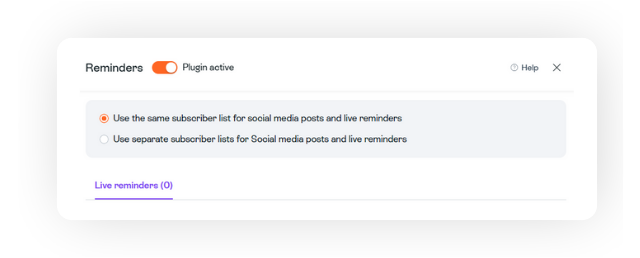
Note: For legal reasons, your customers must accept the type of content they will receive. If you plan to use your reminder list for both live streams and social media posts, you need to notify them of this.
An example invitation message could be:
“Do you want to receive a message when we go live as well as when we have a new post? If so, please accept by clicking the button below.”
To set up the Reminder list, follow these steps:
Step one:
The first, and perhaps most important, step is to choose your invitation word.
This is the word your customers will comment to join the list.
Great examples include “Live,” “Reminder,” and similar words.
Pick a word that fits your company and enter it in the “Invitation request words” text box.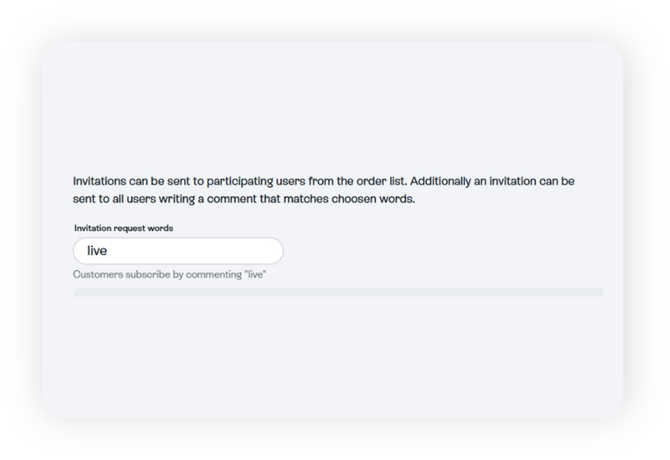
Note: Your customers can comment the chosen word on any content connected to Sprii to get an invitation to your list. This includes every live stream and post linked to a campaign.
Step two:
For the reminder to work, you need to fill out three messages. They are the “Going Live” message, the “Invitation” message, and the “Confirmation After Successful Subscription” message.
Note: The "Going live" message can be customized on campaign level so you could make them fit the corresponding post
Note: The Going Live message links your followers to your Facebook page or Instagram profile - not directly into the live stream. They'll land on your page and can find the live from there, so it's worth setting that expectation in your message text.
To enter text, click on the message - this will open a new window where you can write the message text as well as the text for the accept and cancel buttons.
If you want, you can use one of our prepared templates.
To choose a template, click the icon shown in the picture below:
-3.png?width=570&height=379&name=IMAGE%20-%20VERTICAL%20RECTANGLE%20W-SHADOW%20(2)-3.png)
In the "Confirmation after successful subscription", it is possible to add a call-to-action button. You can configure this button to link to anywhere you choose. For example, it can direct viewers to your website or lead them to a page where they can sign up for your newsletter.
To set this up, you need to fill in the “Confirmation message button label” and paste the link to your desired destination in the field labelled “URL”.
Here is an example of how a setup like this could look: 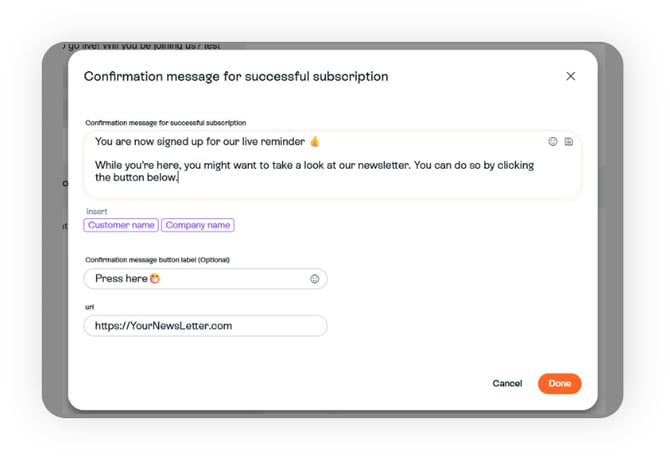
Step three:
Once you’ve completed all these steps, your plugin should look something like this:-2.png?width=416&height=710&name=IMAGE%20-%20VERTICAL%20RECTANGLE%20W-SHADOW%20(3)-2.png)
Remember to save your changes by clicking the orange save button in the bottom right corner.
Set up separate lists for social media posts and live shows
If you have chosen to separate your lists, a new menu option called “Social media post reminders” will appear at the top.
-2.png?width=508&height=393&name=IMAGE%20-%20VERTICAL%20RECTANGLE%20W-SHADOW%20(4)-2.png)
It works the same way as the live reminders and is set up the exact same way - read from step one to learn how to set it up.
Note: The "Default publish post message" can be customized on campaign level so you could make them fit the corresponding post
Finally, you need to choose an invitation word that is different from your live reminder word. This is the word your customers can comment on your lives and posts made with Sprii to join your social media reminder list.
Examples include “SoMe,” “Post,” or another word that fits your company.
And that’s it! You now have separate lists for live and social media reminders!
If you want to read more about how to promote your reminder, you can get some tips here.