![SPRII-udenR_logo-orange+dark.png]](https://help.sprii.io/hs-fs/hubfs/SPRII-udenR_logo-orange+dark.png?height=40&name=SPRII-udenR_logo-orange+dark.png)
Last updated: January 2026
Applies to: All Sprii users
Category: Speed up your success
Table of contents
What exactly is a Sendout group?
How to create sendout messages to send to your new subscriber groups
Other relevant reads:
What are subscription groups?
Subscription groups are lists your followers can join, allowing you to send them promotional content directly to their inbox. By having such a list, you can tailor content specifically for a dedicated audience.
With a Sendout, you can send your loyal fans a file or a direct link to any landing page you choose. This could be a product on your website, your Facebook Live event, a newsletter, or anything else you can imagine.
Even better, Sendouts allow you to schedule these messages in advance for a specific date and time, so you can line up content ahead of time. You can even create multiple lists so customers can sign up for different types of content!
Read on to learn how it works and how to get started.
Creating a Subscription group
The first step is to create a Subscription group.
Step 1:
Go to the Sendouts section in the menu in the left side of Sprii.
Step 2:
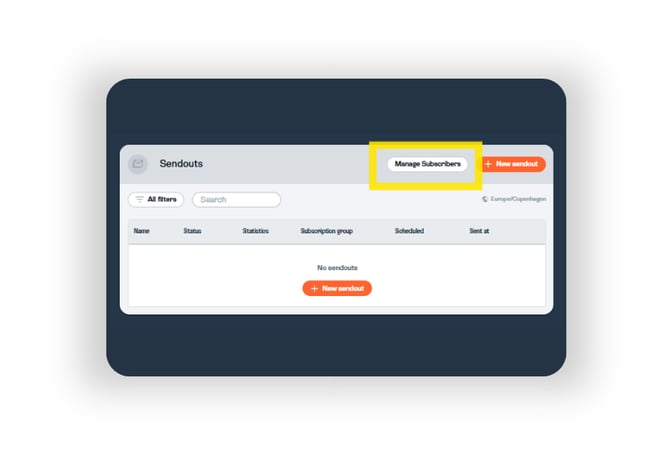
Click the "manage subscribers" button.
Here you need to find the button "new Subscription Group". Click the button and continue to the next step.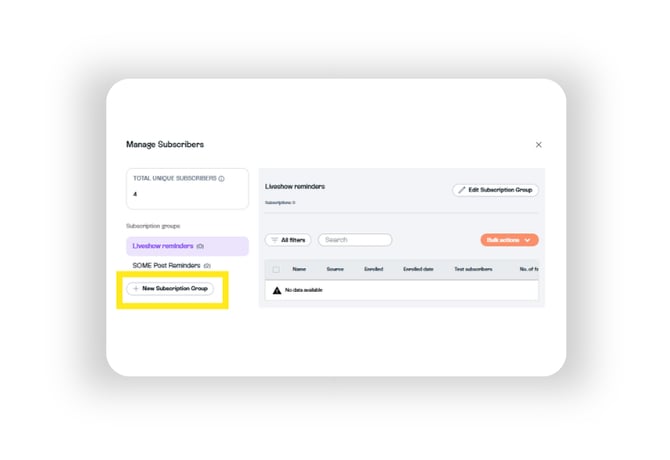
Step 3:
Now to the fun part - you need to fill out the name of the subscription group, the Invitation Trigger Word, the Invitation Message and the Confirmation for Successful Subscription.
The Invitation Request Word is the word your customers can comment in any campaign to sign up for your new Sendout subscription list, just like they would with the Live Reminder. If this word is not specified your customers cant sign up for the list so this is very important.
Now fill out the Invitation Message and the Confirmation for Successful Subscription. You can do this by just clicking the "add message button" or if you are editing a group that already have a message you can simply click the message to edit it.
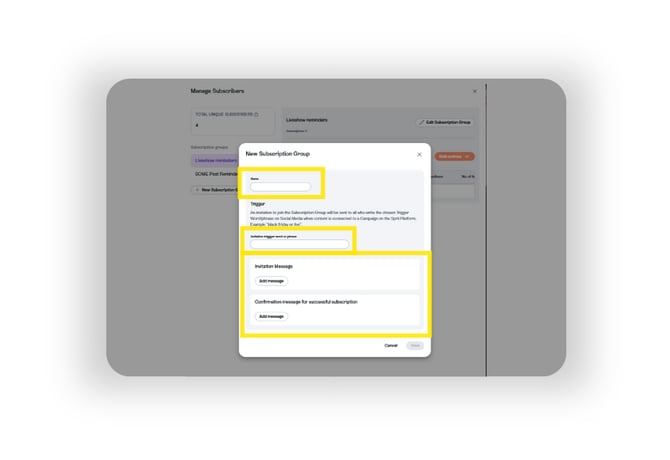
And that’s it! You’ve now successfully created a new subscriber group that your followers can join.
Note: For legal reasons, your invitation message should clearly state what type of content your subscribers are signing up for.
How to create sendout messages to send to your new subscriber groups
Just like with social media posts made through Sprii, you can customize your message and send it directly within the Sprii platform.
To learn exactly how, read on.
Step 1:
Go to the menu item called Sendouts.
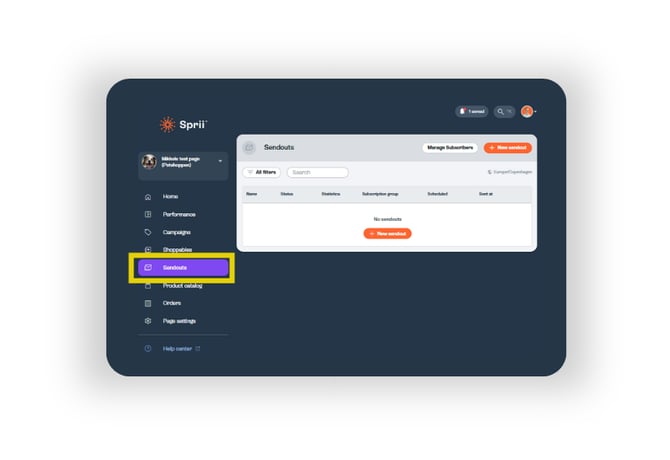
Note: If you don’t see Sendouts in the menu on your page, please contact Sprii Support and we’ll help you activate it - or get you in contact with our lovely sales team.
Step 2:
Create a new Sendout by clicking the orange button.
Once clicked, a new window will open where you can plan and customize your Sendout message. Let’s go through everything you need to fill out:
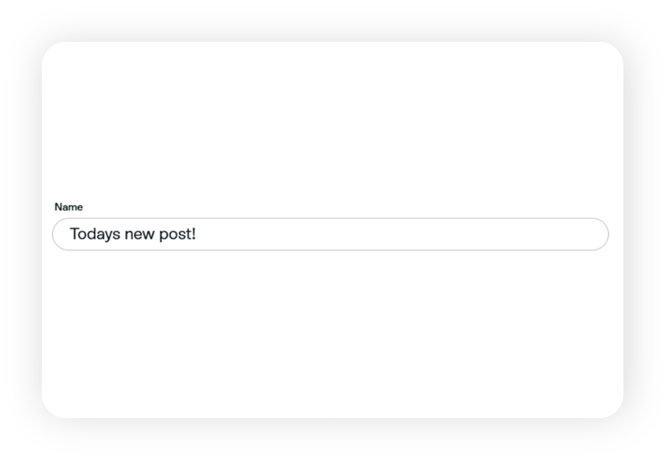
The first field is the Name of the Sendout. This is for internal use only, so you and your team can review and identify the messages later. Choose a name that clearly describes the content of the message.
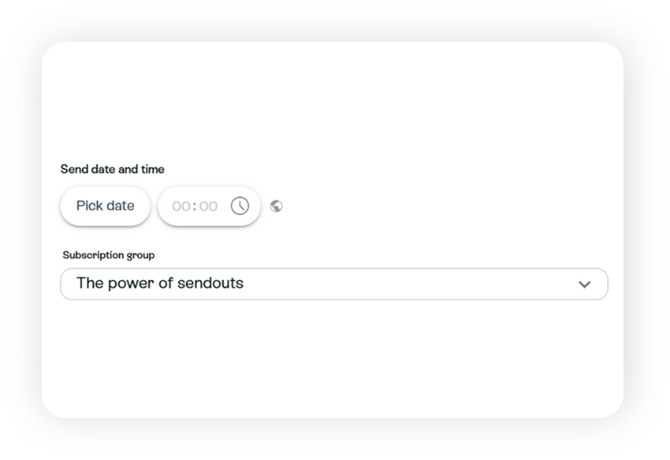
Next, set the time and date for the message - just like you would for a normal campaign. The time you enter here is the exact time the Sendout will be delivered to your subscriber group.
In the Subscription Group drop-down menu, select which group the message should be sent to. The options shown are the groups you created in the Sendout plugin in the first part of this guide.
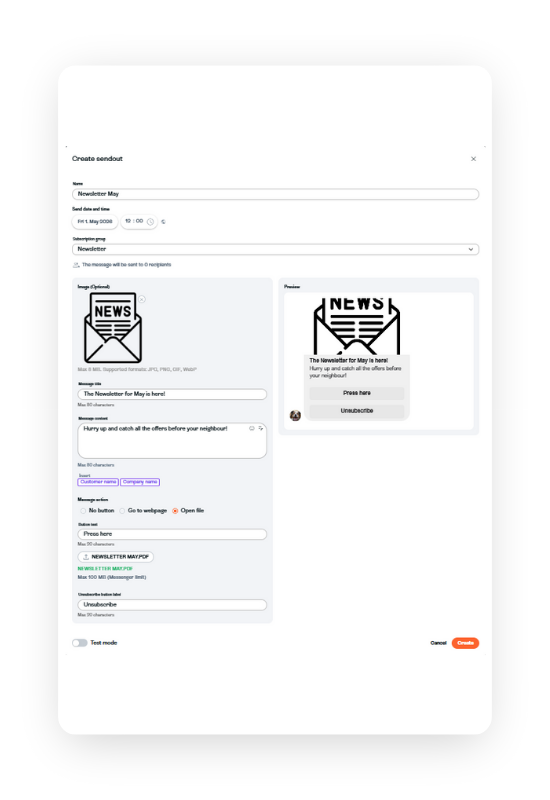
Now the real fun begins! You can fill in the message content with whatever you want to share with your subscriber group along with a picture or a GIF uf you so choose. You can also choose whether to include an attachment in the form of a button linking to a webpage or a file.
If you want to link to a webpage, select Go to Webpage and choose the text to display on the button. In the URL field, insert the link to your desired web destination. This is the page the customer will be taken to when they click the button.
If you want to send a file - for example, a newsletter - select Open File. Again, choose the text for the button. Then click Upload File and select the file you want to share with your subscriber group.
Lastly, fill out the Unsubscribe Button Label. This is the button your customers can click to unsubscribe from the list. For legal reasons, this field must always be completed.
Here’s an example of a correctly set up Sendout:
Now click "Create" in the bottom right corner.
Now the SendOut is created and scheduled if you put in a date. You can always send the message by clicking the "send now" button.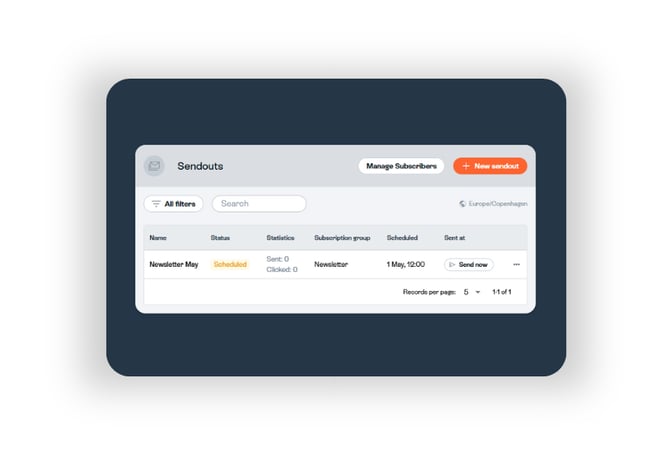
And that’s it! You’ve successfully created a Sendout group and sent your first message!
Once the Sendout is live, you'll be able to track how many messages have been sent from the Sendout overview.
Now it’s up to you! Create some awesome content and build an even more dedicated audience!
If you have any questions or run into any issues with Sendouts, don’t hesitate to contact Sprii Support.