![SPRII-udenR_logo-orange+dark.png]](https://help.sprii.io/hs-fs/hubfs/SPRII-udenR_logo-orange+dark.png?height=40&name=SPRII-udenR_logo-orange+dark.png)
Last updated: January 2026
Applies to: All Sprii users
Category: Automate your setup
Table of contents
What connecting a post to Sprii does
How to connect a post to Sprii
Other relevant reads
How to connect a post to Sprii
First, you need a campaign. The campaign defines the rules Sprii uses to respond to comments.
Posts can be linked to any existing campaign in Sprii (even ones already connected to other posts) or to a newly created campaign.
If you already have a campaign, skip to Step 2.
Step 1: Create the campaign
If you only want to promote a Sendout or a Reminder list, the quickest setup is to create a Social Media campaign (all types work in this case):
-
The Content page can be left empty.
If you want to sell from those posts or want to learn more about Social Media campaigns in general, you can read more here: Image post campaign
Step 2: Connect the campaign to the post
Now that you have a campaign, you just need to connect it to your post.
The process varies slightly by campaign type.
If you’re using a Social Media campaign:
-
Go to the Publish tab.
-
Click Connect to existing posts.
-
Add your post
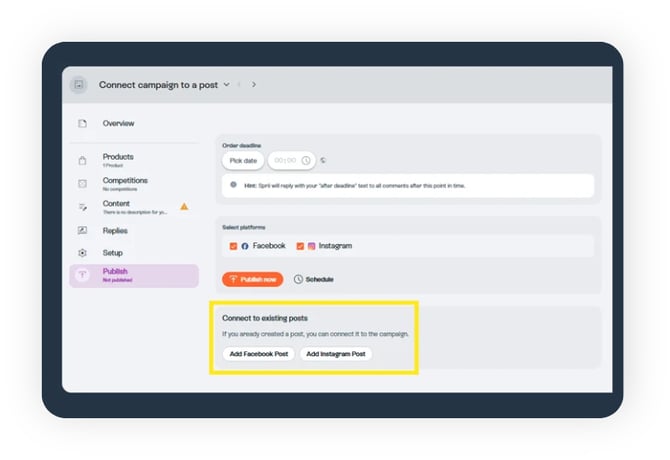
Click “Add Facebook/Instagram post” (depending on where the post was published). A panel with the most recent 20 posts will appear; locate the post you want and add it. The post is now connected to the campaign, and Sprii will monitor it and respond according to the information set in that campaign.
If you’re using a Live campaign:
-
Go to the channels tab.
-
Click Connect to existing posts.
-
Add your post
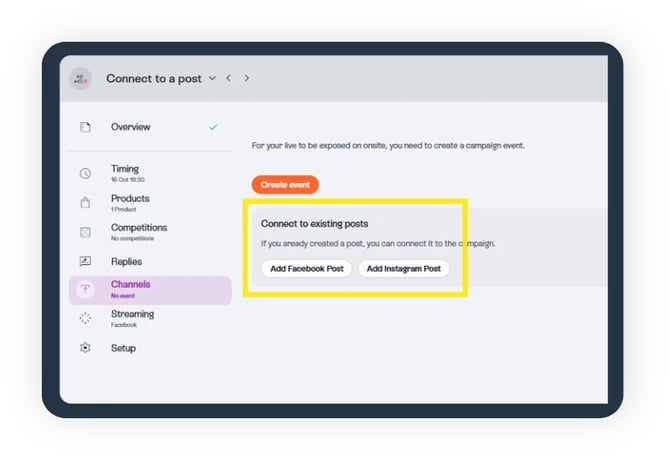
Click “Add Facebook/Instagram post” (depending on where the post was published). A panel with the most recent 20 posts will appear; locate the post you want and add it. The post is now connected to the campaign, and Sprii will monitor it and respond according to the information set in that campaign.
Note: If you connect a live reminder post to your live campaign, all buy codes from the products in that campaign will also be available if users comment on the post.
This usually won’t happen unless you actively promote it — but it can be a great way to give followers a sneak peek of the products that will be featured during the live.
That's everything. You've now connected your post to Sprii.