![SPRII-udenR_logo-orange+dark.png]](https://help.sprii.io/hs-fs/hubfs/SPRII-udenR_logo-orange+dark.png?height=40&name=SPRII-udenR_logo-orange+dark.png)
Before you start
You need access to manage the intended Sprii Page and its connected Facebook Page. Connect Instagram too if you will use it. See Connect Meta to Sprii.
Set up the list before you invite viewers. The invitation words, messages and subscriber groups belong to this Sprii Page. A different Page needs its own setup.
Enable Reminders and choose the audience
- In Sprii, go to Page settings
 > Plugins
- On Reminders, click Configure.
- If Reminders is inactive and Activate with defaults is shown, click it
 to turn on the plugin with ready-to-use messages.
This saves the default setup immediately.
To set it up yourself, choose Set up manually instead. If the inactive form shows only Activate plugin, click it
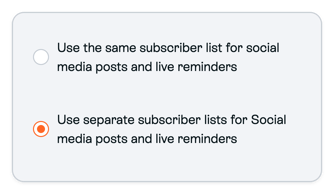
Complete the required fields before saving the setup. - Choose the audience you want to offer:
- Use the same subscriber list for social media posts and live reminders: customers join one list for both. The invitation must explain both types of messages.
- Use separate subscriber lists for Social media posts and live reminders: customers join each list separately. Each list needs its own invitation word and wording.
Check the list setup
Open Live reminders. If you activated with defaults, the messages are ready to use. Edit existing messages only if they do not fit your Page.
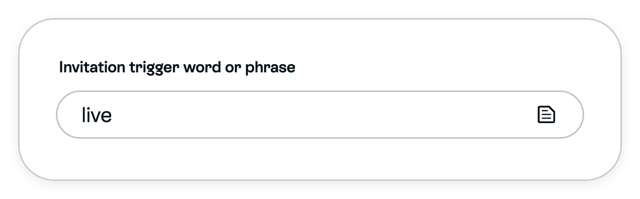
- Check Invitation trigger word or phrase. Keep the existing word or enter your own, for example live.
- Keep the existing Sign-up invitation, Confirmation message for successful subscription and Live reminder unless you need different wording. If you chose Set up manually or Activate plugin, fill in all three, including the invitation’s Accept Text and Decline Text and the reminder’s Link to page - button and Unsubscribe text.
- If you chose a shared list, check that the invitation explains both live-show and social-post reminders. If you chose separate lists, open Social media post reminders. Check its different invitation word, signup invitation and confirmation, and a Post reminder that explains the post.
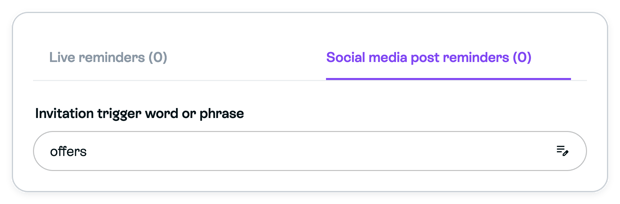
Use distinct invitation words across this Page’s reminder and Sendout groups. Overlapping words can send a comment to the wrong group.
Save changes and check activation
If you changed a list, word or message, chose Set up manually, or used Activate plugin, click Save 
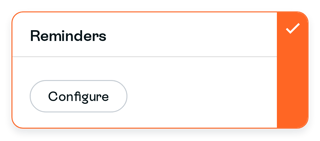
The check on the Reminders card shows that the plugin is on.
Let customers opt in
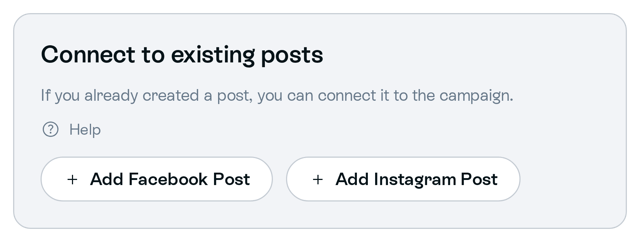
Use a live reminder post campaign, or connect an existing post to Sprii. Tell viewers what they will receive and which word to comment.
Customers join in three steps:
- A viewer comments the invitation word on Facebook or Instagram content connected to a Sprii campaign.
- Sprii sends the sign-up invitation through Meta.
- The viewer accepts the invitation and joins the group. Sprii then sends your confirmation message.
Important: Only viewers who accept the invitation join the list. Meta may prevent an invitation or reminder from reaching them.
The word must appear in a comment on connected content. A direct message or a comment from your own Page does not start signup. Send Live Reminder invites in Orders sends invitations, not reminders. An Orders invitation may not reach Instagram viewers who only commented during a live show.
Choose the campaign’s sending method
Use the Page’s reminder message unless this campaign needs different wording. See Set up a Live Shopping campaign for campaign settings.
Native Live campaign: starting the show does not send the reminder. Send it to the subscribers of the relevant group when you are ready.
Important: With one audience, Send Live reminders and Send Live Reminder notification send immediately. With multiple audiences, choose the platforms and click the final Send. Check the campaign before sending.
When you are ready to notify subscribers, go to Campaigns 
Open the intended campaign and click the campaign header’s Control Center button 
Inside Control Center, click Send Live reminders when available.
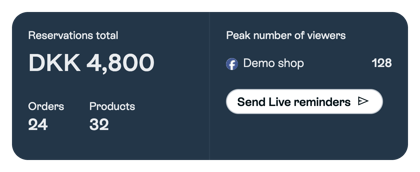
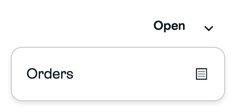
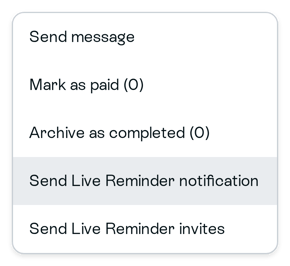
Alternatively, from the intended campaign, choose Open > Orders > Action > Send Live Reminder notification.
If a source chooser appears, leave Send to customers from all platforms ticked to reach every platform, or untick it and choose the platforms under Customer platforms. Then choose Send.
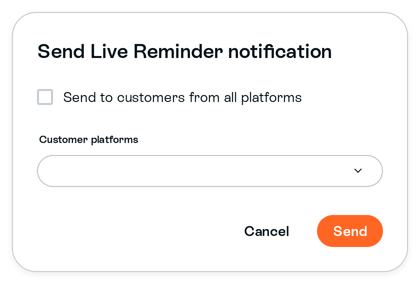
Both routes use the same send action. After either is used, the action may no longer be available, even if no one was eligible to receive the reminder.
Social-post and prerecorded campaigns: Send reminder on publish is a separate choice. It does not replace the Native Live send action.
Optional: customize the messages
Use these steps only if you want to change your messages. The pictures show examples.
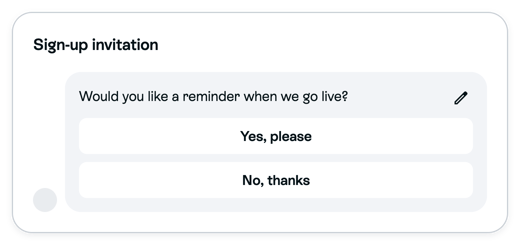
- In Page settings > Plugins > Reminders > Configure, open Live reminders. Open Sign-up invitation using its message or Edit message pencil. Choose Add message if it is empty. Explain what the viewer is joining. Set clear Accept Text and Decline Text, then click Done.
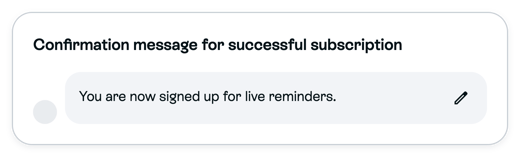
- If needed, edit Confirmation message for successful subscription so it confirms that list’s purpose. Click Done.
- If needed, edit Live reminder. Write the show reminder and set Link to page - button and Unsubscribe text. Click Done.
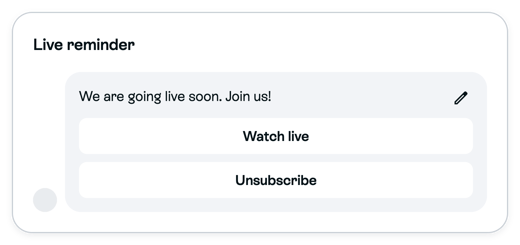
- If you use separate lists, open Social media post reminders to edit that list’s invitation, confirmation or Post reminder. Click Done in each edited message.
Done closes the message editor. Click the Reminders form’s Save to keep changes, or its Cancel to discard them. The editor’s Cancel does not discard typed changes.
Let customers unsubscribe
Unsubscribe removes a viewer from that group. If Verify unsubscribe is on, they confirm first. Separate groups are left separately.
Grow your reminder list
Share the invitation post before the show. Mention its word during the live show when it fits.
Need help? Contact Sprii Support