![SPRII-udenR_logo-orange+dark.png]](https://help.sprii.io/hs-fs/hubfs/SPRII-udenR_logo-orange+dark.png?height=40&name=SPRII-udenR_logo-orange+dark.png)
YOU WILL LEARN
How to create a live reminder post and publish or schedule it on Facebook, Instagram or both.
BEFORE YOU START
- Reminders set up for the Sprii Page that will publish the post, with a reminder group and an invitation word. See Set up reminders.
- The image or video and the caption for the post.
This post invites people to your Page's existing reminder list. It does not set up Reminders or create the list.
Create the campaign
- In Sprii, go to Campaigns
 and click New campaign
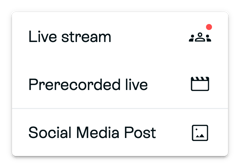
- Choose Social Media Post.
- Under Select campaign purpose, choose Live Reminder. Under Select media type, choose Image post or Video post.
- Keep the suggested Campaign name or enter your own, then click Create.
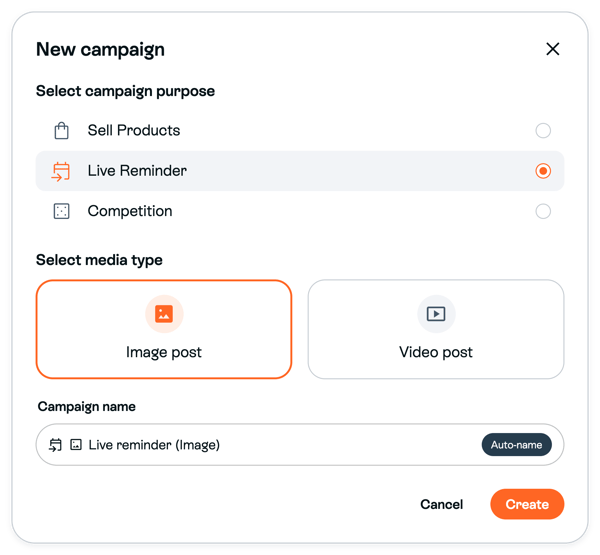
The picture shows Image post selected. Choose Video post instead if you want to publish a video.
Add the post content
- In the campaign, open Content

- For an image post, click Add images to your campaign. For a video post, click Add a video to your campaign. Choose the file and wait until it appears. There is no separate Save.
- Write the caption in Campaign text. Tell followers what the reminders are for and which invitation word to comment to request an invitation to your reminder list. They must accept the invitation to join. The caption saves automatically.
The illustration shows the image-post control. A video post uses Add a video to your campaign in the same place.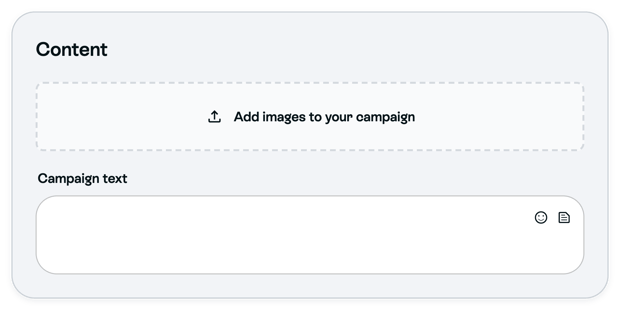
Publish the post
- In the campaign, open Publish
 and select Facebook, Instagram or both, from the platforms available to your Page.
 - To publish right away, click Publish now. To publish later, click Schedule and pick the date and time under Publish at. Picking the time saves the schedule, and the button then shows that date and time.
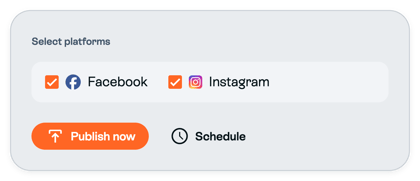
The picture shows both platforms selected. Choose the available platforms you want to use.
If the campaign is already scheduled and you click Publish now, Sprii asks you to confirm. Confirm only if you want to replace the schedule.
After publishing, check Facebook and Instagram separately to see that the post appeared on each platform you selected.
Limitations
- Important: Reminder settings, invitation words, groups and subscribers belong to one Page. A post from another Page needs that Page's own setup and list.
- Facebook and Instagram publish independently. One can succeed while the other fails.
- Publishing and scheduling do not happen instantly. Sprii cannot guarantee when Meta shows the post.
- If you connect this post to a Live Shopping campaign, later comments can use that campaign's current product buy codes. See Connect a social media post to Sprii.
Need help? Contact Sprii Support