![SPRII-udenR_logo-orange+dark.png]](https://help.sprii.io/hs-fs/hubfs/SPRII-udenR_logo-orange+dark.png?height=40&name=SPRII-udenR_logo-orange+dark.png)
Last updated: January 2026
Applies to: All Sprii users
Category: Automate your setup
Table of contents
Other relevant reads:
How to use the Abandoned Cart plugin
How to set up the waitlist
Set up the automatic waitlist in 30 seconds by following these three steps.
Go to the Page settings in Sprii and go to Plugins in the left-hand navigation. Click on the Waitlist card in the overview.-png.png?width=670&height=422&name=TEMPLATE%20-%20800%20px%20wide%20(1)-png.png)
Step 2
Activate the plugin and fill out all empty text fields. You can use our predefined templates as shown in the video below or you can get creative and write on-brand messages.
Step 3
Click Save and close the window. The waitlist feature is now active for all upcoming campaigns and will efficiently handle products and customers on the waitlist automatically.
How to use the waitlist
The beauty of the waitlist feature is its automatic functionality, meaning you won't have to lift a finger to manage it.
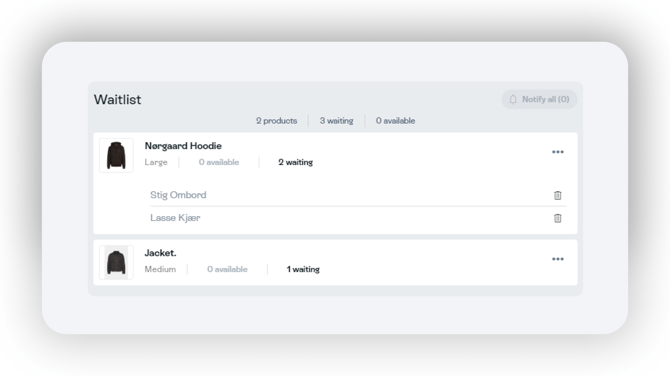
However, if you wish to view the waitlist or remove a customer, you can easily access the waitlist in the campaign Dashboard.
Important note
Once the reservation deadline has been reached the automated waitlist will stop. If deadline settings are adjusted the waitlist can be reactivated by sending one new message to a person on the waitlist. This will trigger automation and all waiting persons will be notified.
Tip: We also have an Abandoned cart feature, that works incredibly well with the waitlist.
You can read more about how to use the Abandoned cart here