![SPRII-udenR_logo-orange+dark.png]](https://help.sprii.io/hs-fs/hubfs/SPRII-udenR_logo-orange+dark.png?height=40&name=SPRII-udenR_logo-orange+dark.png)
What it does, and what it doesn't
OnPay is a payment provider for Sprii Checkout. Sprii starts each payment and records its status. Your acquirer handles settlement and payouts for card payments.
Requirements
- A Sprii Page set to Danish or Norwegian Bokmål. OnPay is available only for these Page languages.
- Sprii Checkout set up on your Page. See Set up Sprii Checkout.
- Administrator access to the Sprii Page and access to your OnPay backend
Set it up
- In Sprii, select your Page and go to Page settings
 > Sprii checkout > Payment methods
- Find OnPay and click Configure.
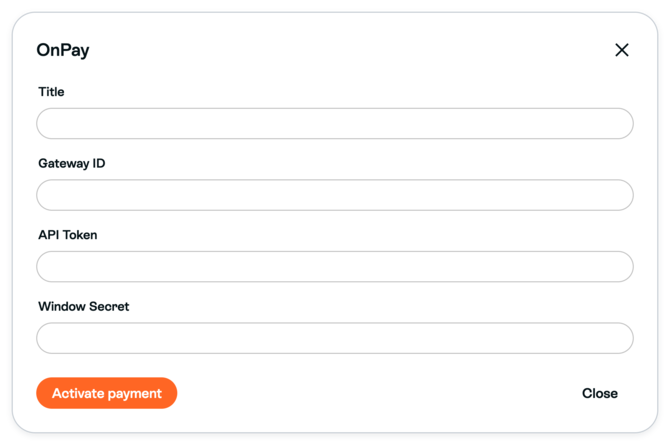
- Click Activate payment
 if it is inactive.
 - Enter a Title, such as Card payment. Shoppers see this name at checkout.
- In your OnPay backend, find Gateway ID at the bottom of the left menu. Copy it into Gateway ID in Sprii.
- In OnPay, go to Settings > Payment Windows. Copy the window secret and paste it into Window Secret in Sprii.
- In OnPay, go to Settings > API, then click New API token. Name the token
Spriiand click Create. - Copy the generated token into API Token in Sprii. Keep the API token and window secret private.
- Click Save
 in Sprii.
Your OnPay configuration is saved for this Page. Saving does not confirm that a payment has succeeded.
These settings belong to the Page. New payment requests, captures and refunds use the credentials currently saved on the Page, including for existing campaigns. Changing the settings does not move an existing OnPay transaction to another account.
Limitations
Important: OnPay uses manual capture. The payment is authorized when the shopper pays and captured when you complete the payment on the order. Check the payment before you ship.
- A refund needs a captured payment with money left to refund. Use an account with access to the order to start an eligible refund manually in Sprii. See Refund an order.
- Manage your OnPay account settings in OnPay. For questions about card-payment settlement or payouts, contact your acquirer.
Need help? Contact Sprii Support