![SPRII-udenR_logo-orange+dark.png]](https://help.sprii.io/hs-fs/hubfs/SPRII-udenR_logo-orange+dark.png?height=40&name=SPRII-udenR_logo-orange+dark.png)
YOU WILL LEARN
How to adjust a paid order, submit the correct refund amount and check what was recorded.
BEFORE YOU START
You need access to the order on the correct Sprii Page. Its payment must be successfully captured, with money remaining to refund. The payment method must support refunds through Sprii.
All pictured quantities and amounts are fictional examples.
Open the order and check payment
- In Sprii, go to Campaigns
 and open the campaign. Choose Open > Orders, then click the order row.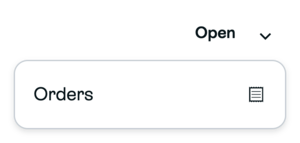
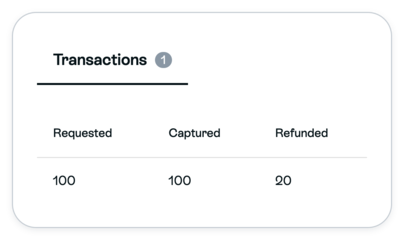
- In Order information, check Captured Amount. Open Transactions to confirm the payment succeeded and compare Captured with any amount already Refunded. Return to Order information to make the adjustment.
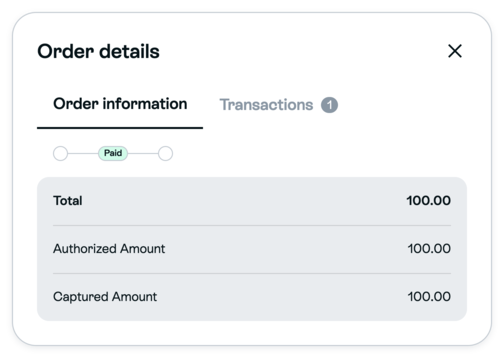
Important: An order stage, including Completed, does not establish that payment was captured.
Adjust the amount to keep
Each editor opens with the current value. Save becomes available after you change it.
- For returned products, find the product row and click the pencil in Quantity.
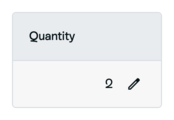
Enter the quantity that will remain on the order and click Save. If you enter zero, confirm the product removal.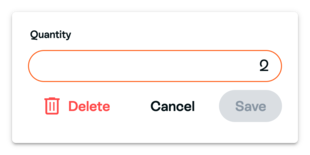
- If the order has a Shipping cost row and you are refunding that charge, click its pencil.

Enter the shipping charge that will remain and click Save.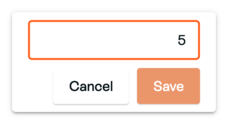
These edits change the order total. They do not send money back.
Submit and check the refund
- Check Ready for refund after saving the adjustment. It shows captured funds minus previous refunds and the new order total. For example: 100.00 captured, no previous refund and a new total of 80.00 leaves 20.00 to refund.
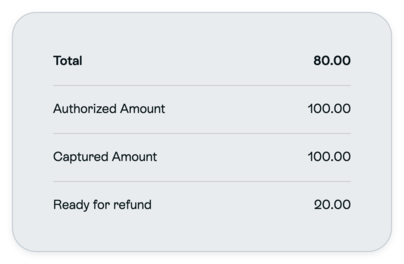
Important: The Refund button shows the amount, for example Refund 20.00. It submits immediately, with no second confirmation dialog. - Compare the button's amount with the amount you intend to return. Click the Refund button once only when its amount is correct.

- Open Transactions again. Check that Refunded increased by the submitted amount. The row also shows Requested and Captured.
- Check the same refund in your payment provider before telling the shopper it was accepted.
Matching Sprii and provider records confirm the submission. The provider controls processing and when the shopper receives the money.
Limitations
Important: If the action hangs, the amount does not update, or the records disagree, do not submit another refund. Check the provider's record. Sprii does not retry automatically.
A refund made in the provider portal is not automatically reflected in Sprii. Handle payment methods without Sprii refund support with the provider; Ready for refund alone does not establish that Sprii can process it.
Need help? Contact Sprii Support