![SPRII-udenR_logo-orange+dark.png]](https://help.sprii.io/hs-fs/hubfs/SPRII-udenR_logo-orange+dark.png?height=40&name=SPRII-udenR_logo-orange+dark.png)
Before you start
Use this guide when Mollie is available in the intended Sprii Page's Payment methods. Use the Mollie website profile for that business and Sprii Checkout.
Set it up
- In Sprii, select the Page and open Page settings
 > Sprii checkout > Payment methods
 . Find Mollie and click Configure.
- If inactive, click Activate payment
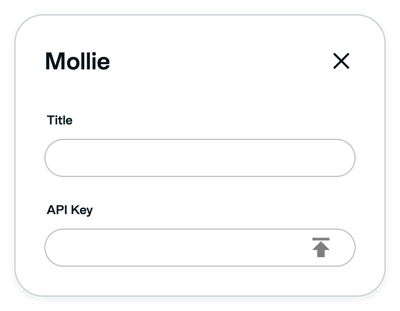
 . Enter a customer-facing Title.
- In Mollie's web app, use an Admin or Developer role and open Developers > API keys. Use a live Standard API key scoped to the intended website profile. If you need a new key, choose Create access token > Standard API key in Live mode. Copy and store it when created; Mollie shows the secret once. An Advanced access token is a different credential; do not substitute it for this setup. See Mollie's API-key instructions.
- Return to Sprii and paste the key into API Key.
- Accept any required integration terms and click Save

The settings are saved for this Page. The method and Title apply when checkout loads, including for existing campaigns. Saving does not confirm a payment or payout.
Payment handling
There is no separate capture step in Sprii for a payment Mollie marks as paid. Paid does not mean the money has reached your bank account; settlement and payout follow Mollie's schedule. A person with access to the order can start an eligible refund in Sprii; see Refund payments. Refunds remain a manual action.
Need help? Contact Sprii Support