![SPRII-udenR_logo-orange+dark.png]](https://help.sprii.io/hs-fs/hubfs/SPRII-udenR_logo-orange+dark.png?height=40&name=SPRII-udenR_logo-orange+dark.png)
Before show day: your essential setup
- A smartphone with a clean lens, enough battery or a power cable, and a stable mount
- Even light on the host and the products, for example a ring light or LED panel in front of the host
- A way to keep speech clear, such as a microphone close to the host
- A reliable network in the room where you will actually stream

Keep the microphone close to your voice and away from clothing that can rub against it. Rehearse at your normal show volume and move as you would on camera. Then listen back and check that speech is clear, without distortion or distracting background noise.

Choose the right streaming path
The Sprii Host App is available on iOS. See Stream from the Sprii Host App for its device and app requirements.
You can stream from Android with the social platforms' own apps, but Android does not run the Sprii Host App.
A phone's age is only a rough guide, not a Sprii compatibility promise. Check the operating system, network, heat, storage, battery and camera on the exact phone you will use.
Test before show day
Before show time, test the phone, network, microphone, any speaker or music source, and the lighting in the room you will use.
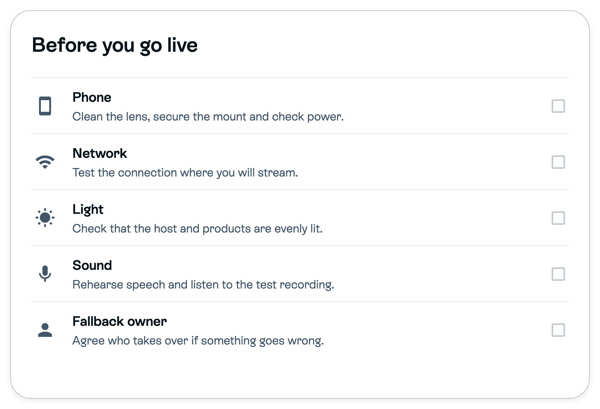
Check your equipment and your backup plan:
- Phone: Clean the lens, secure the mount and check power.
- Network: Test the connection where you will stream.
- Light: Check that the host and products are evenly lit.
- Sound: Rehearse speech and listen to the test recording.
- Fallback owner: Agree who takes over if something goes wrong.
Before the live
This checklist is for a live show streamed from the Sprii Host App and run from Control Center. A stream started in the Instagram app and a prerecorded show have their own controls.
Check these before the host starts:
- The campaign has its timing, products, buy codes and destinations ready
- The phone has Do Not Disturb on and battery-saving mode off
- The host knows which campaign to select in the Host App
- An operator can open Control Center
 and run the show
 - Your live reminder plan is ready, if you use Reminders
- The equipment and fallback checks above are done
Start and run the show
Aim to start the stream 3 to 5 minutes before the campaign's scheduled start time. First, click the play control beside Before show in Control Center. In the Host App, select the same campaign, mute the microphone and start the stream. The Host App counts down from 10 before the stream starts.
Before show stays on while viewers arrive; its countdown runs to the campaign's scheduled start time. Check that the stream is live and Before show is playing, then turn Before show off and unmute when the host is ready. Send your live reminder when it suits the show.
The controls are explained in Stream from the Sprii Host App and Run your live show from Control Center.
During the show, product displays, overlays, questions and competitions are run from Control Center. A second person on those controls helps the host stay in front of the camera, but one person can do it.
End the show and follow up
Mute the microphone in the Host App, play After show in Control Center for a few minutes so late viewers still see the products, then stop the stream in the Host App. You are still live while After show plays; it does not mute the microphone for you.
Download or repurpose the content you want to keep. If you streamed to Instagram, post the reel within one hour after the live, then check that it is connected to the campaign. Sprii may connect it automatically; if not, connect it manually. See Repurpose an Instagram Live as a reel.
Limitations
- Sprii cannot guarantee stream quality based on a phone's age or a named accessory.
- A second phone, extra lights, props and specialist accessories are optional production choices, not Sprii requirements.
- Equipment recommendations, prices and availability change. Choose items by the criteria above rather than a fixed shopping list.
- Which destinations you can stream to depends on your account, Meta and the campaign setup.
- A preview problem in Control Center does not necessarily mean the public stream has failed. See Troubleshoot the Control Center live preview.
Need help? Contact Sprii Support