![SPRII-udenR_logo-orange+dark.png]](https://help.sprii.io/hs-fs/hubfs/SPRII-udenR_logo-orange+dark.png?height=40&name=SPRII-udenR_logo-orange+dark.png)
YOU WILL LEARN
How to connect a Facebook Page, refresh a missing Page and check Instagram message access.
BEFORE YOU START
- A personal Facebook profile with access to the Facebook Page you want to connect
- Access to the Instagram account you want to link if you plan to use Instagram messages
Connect Meta to Sprii
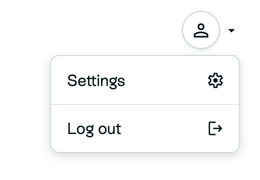
- In Sprii, open the top-right profile menu, then go to Settings > Accounts.

- Click Connect account

- Sign in with your personal Facebook profile and complete Meta’s authorization steps for the Pages you want to use.
- Return to Sprii Settings > Accounts. Check the Page cards that Meta returned.
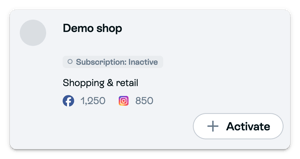
- Find the Page you want to use with your Sprii account. If its card is gray and available, click Activate for a Page without a subscription. A Page that already has a subscription shows Connect instead. Follow any onboarding steps that Sprii opens.
If your Page is missing
- In Settings > Accounts, open the connected Facebook profile’s menu and choose Renew Meta Permissions
 and complete the permission steps in Meta.
- Return to Sprii Accounts, open the same profile menu and click Refresh pages.
- Check the cards again. If your Page now appears as available, use Activate if it has no subscription, or Connect if it already has one. If it is still absent, see Connect a Facebook Page that is not listed.
Meta decides which Pages it returns for your profile. An available gray card and an absent Page need different actions. A connected Page card’s Refresh updates that card; it does not look for an absent Page. The token warning’s Refresh token is a separate recovery action.
Connect Instagram to your Facebook Page
- In Facebook, switch into the intended Page. Open Settings and privacy > Settings, then Linked accounts under Permissions.
- Open Instagram. If the intended account is not linked, choose Connect account, sign in to Instagram and complete Meta’s prompts.
- In the Instagram app, open your profile menu > Messages and story replies > Message requests > Connected tools. Turn on Allow access to messages.
- Return to Sprii Settings > Accounts and check that the intended Page card shows the linked Instagram account.
If the linked account is missing or messages still fail, see Troubleshoot Instagram direct messages.
Your selected Page is connected to Sprii. Instagram message access is a separate setting; connection alone does not prove that a message will reach a shopper.
Limitations
- Meta owns Page access, account eligibility, Instagram linking and message access. Sprii cannot make a Page appear if Meta does not return it.
- If your organization changes Page access in Meta, renew permissions and refresh the Page list in Sprii. You do not need to follow the older Business Portfolio ownership-banner procedure.
- If the connection later shows a token error, see Fix "Your token is invalid". The token-banner actions are separate from Refresh pages in Accounts.
Need help? Contact Sprii Support