![SPRII-udenR_logo-orange+dark.png]](https://help.sprii.io/hs-fs/hubfs/SPRII-udenR_logo-orange+dark.png?height=40&name=SPRII-udenR_logo-orange+dark.png)
Last updated: January 2026
Applies to: WooCommerce users
Category: Welcome to Sprii: English Guides
💡 Top takeaways
When you activate the WooCommerce integration, all the products from your webshop will automatically be imported to Sprii for easy campaign management. Your customers will shop via your campaigns but checkout on your webshop just like any other regular customer.
Table of contents
Integrate WooCommerce with Sprii
Set up campaigns in Sprii with your WooCommerce integration
Important to note
- In legacy plugin, active WooCommerce discounts would be added on top of custom prices set in Sprii. (Update plugin to fix this - Follow step 4)
- If pricing on variants under same product varies, then ask Sprii support to activate this feature.
- Products has to be active on the webshop
Integrate WooCommerce with Sprii
Step 1
Go to your WooCommerce backend and under 'WooCommerce' in the left-hand menu go to Settings -> Advanced -> Rest API
Step 2
Create a new REST API key by providing a description and granting it Read/Write permissions.
Step 3
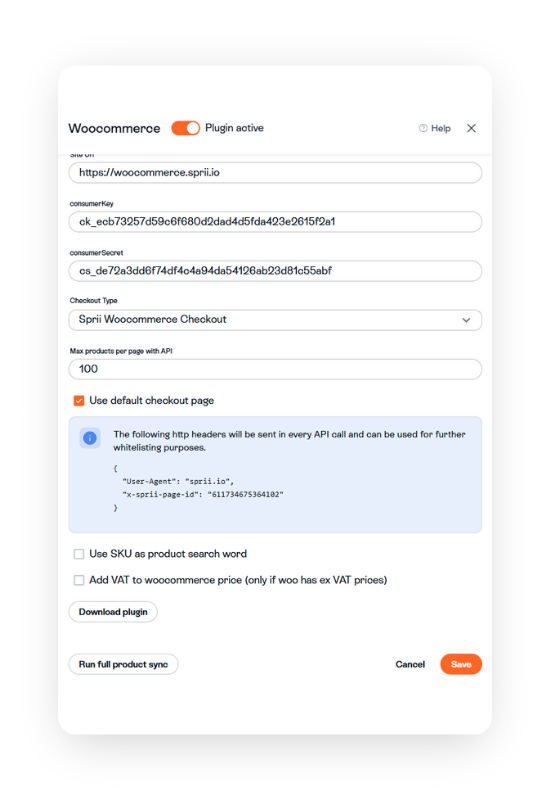
The next step is to navigate to the Page settings in Sprii and access the E-commerce integrations. From there, you will be able to easily configure the WooCommerce integration.
You will need to enter the URL of your webshop and then copy the Consumer key and Consumer secret that you received when creating the REST API key in the previous step.
You have the option to deselect the "Use default checkout page" box if you wish to direct the customer to a different page instead of the checkout. After unchecking the box, a new input field will appear, allowing you to input the desired page path for redirection.
Step 4
To complete the integration, you will need to download and install the Sprii plugin in your WooCommerce backend.
- Download plugin in from Sprii -> page settings -> Ecommerce -> WooCommerce
- Upload the plugin in your WooCommerce backend
- Activate the plugin
Step 5
The last step is to run a full product syncronization to import all the products from your webshop. This is done from the WooCommerce integration in Sprii by clicking the button "Run full product sync".
Set up campaigns with your Woocommerce integration
Guides to campaign creation can be found here:
- Live campaign
- Image Post Campaign
- Video Post Campaign (to be published soon)
- Prerecorded Live Campaign
Any Questions?
Need help? Our support team is here for you Monday to Friday from 09:00 to 16:00 CET (Fridays until 15:30). For urgent matters, we're available until 22:00 CET on weekdays and 15:00-21:00 CET on Sundays.
Contact us at support@sprii.io or call +44 74 76 545 725