![SPRII-udenR_logo-orange+dark.png]](https://help.sprii.io/hs-fs/hubfs/SPRII-udenR_logo-orange+dark.png?height=40&name=SPRII-udenR_logo-orange+dark.png)
Before you start
Have a Live Shopping campaign with the product added. See Set up a Live Shopping campaign.
A Unique Message replaces the usual reply for that product and response type. It is not an extra message alongside the normal reply. Other campaign products, including the same product in another campaign, keep their own replies.
Choose the reply
- In Sprii, go to Campaigns

Open the intended campaign and go to Products
- Open the menu on the product row and choose Unique messages.
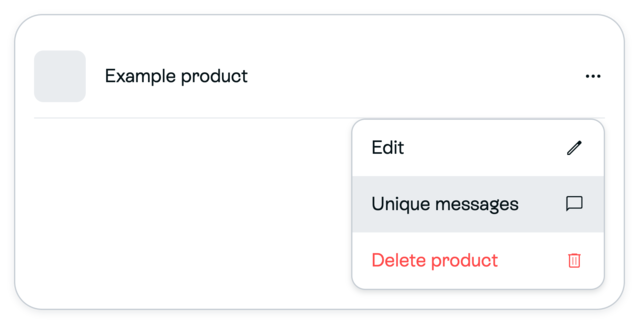
- In Product Replies, choose the Reservation tab. Use the Private reply column. Private reply is the direct message; Public reply is visible in the comment feed.
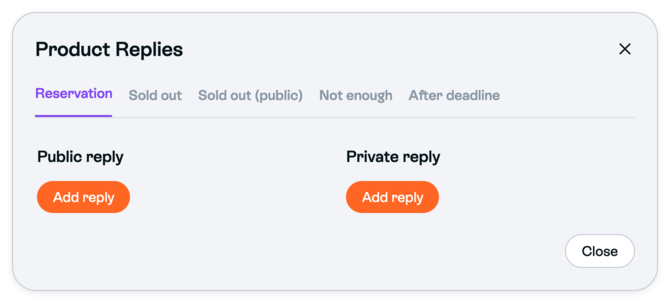
- Under Private reply, click Add reply if no reply is set. If the message editor does not open directly, click the resulting reply field. To change an existing reply, click its reply field. In the New text editor, write the product-specific reply and click Save to return to Product Replies.
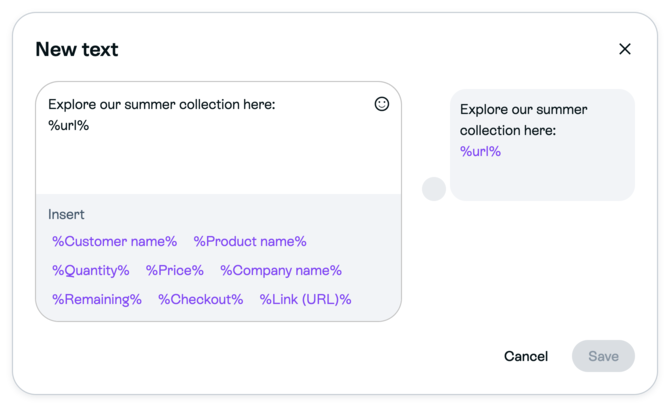
The collection reply shown is an illustrative example, not a Sprii default. Save becomes available after you write or change the reply. %url% uses the URL stored on this campaign product; set that destination as described below.
Choose the shopper’s destination
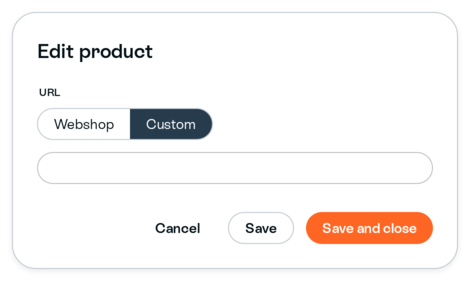
To set the destination for %url% or an optional URL button, first click Close in Product Replies. Open the same product row’s menu, choose Edit, switch URL to Custom if it currently uses the webshop value, and enter the destination you want. Click Save and close, or click Save  and then close the product editor. Reopen the same product’s Unique messages. The Product Replies dialog does not have a separate destination-URL field.
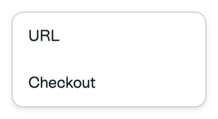
For an optional button, choose under Message buttons:
- URL to open the URL stored on the campaign product. This can lead to a collection, a newsletter signup page or a product outside your webshop integration.
- Checkout to open the shopper’s checkout link.
Enter Button text for the caption the shopper sees. A button without a caption is not shown.
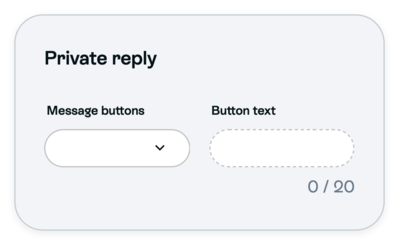
After you save the text editor, Product Replies updates automatically. Button choices update when selected; click outside Button text after editing it. Click Close. Reload the campaign, then reopen the same product’s Unique messages to check that the text and choices were saved. Product Replies itself has no separate Save action.
After setup
Sprii uses your product-specific text for that product’s Reservation private reply. It attempts to send the reply when a matching Facebook or Instagram interaction triggers that response. A comment alone does not guarantee a reservation or a delivered message. Meta’s rules can prevent delivery of the reply or its button.
A collection or newsletter link is a destination; adding it does not import a collection into Sprii or subscribe someone to a newsletter. A product link outside the integration does not make that product part of the integrated catalog. Do not assume a link-sharing product requires a zero price or unlimited inventory.
Need help? Contact Sprii Support