![SPRII-udenR_logo-orange+dark.png]](https://help.sprii.io/hs-fs/hubfs/SPRII-udenR_logo-orange+dark.png?height=40&name=SPRII-udenR_logo-orange+dark.png)
Last updated: February 2026
Applies to: All Sprii users
Category: FAQ & guides
Table of contents
Letting Shopify AI (Sidekick) create the workflow
Creating the filtered view in your order list
Other relevant reads
Set up your Shopify integration
How to import product information from Shopify to Sprii
Set up the automation in Flow
Step 1
Make sure you have the app installed in your webshop. If not, it is free on all Shopify subscription plans and can be found here.
Step 2
Open the app, and click "Create workflow" in the top right corner:-3.png?width=670&height=461&name=Horizontal%20template%20(1)-3.png)
Step 3
After clicking "Create workflow", you can either let the Shopify AI (Sidekick) create it for you, or you can click "Select a trigger" underneath.
Letting Shopify AI (Sidekick) create the workflow
If you let Sidekick create the workflow, you can copy paste the following into your message:
"Set up a workflow like this:
Trigger: Order created.
Condition: Check the customAttributes list.
Criteria: Look for the Key equal to sprii-order-no.
Action: Add tag "Sprii" to the order"
Then it should end up looking something like this:
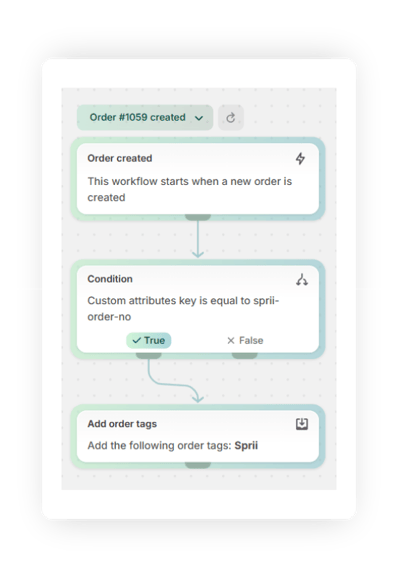 If the wording is not the same, there is a risk that it will not work properly. If you are unsure, call our support here and then we will help you set up a test order.
If it works, then you can click here to see how you create the filtered view in your order list.
If we find out it is not working, then read below on how you manually set up the workflow:
Create the workflow manually
Step 1
After clicking "Create workflow", click "Select a trigger" instead of starting a chat with Sidekick.
On the left side, choose "Shopify", and find "Order created". See below for video guidance:
Step 2
Hover your mouse above the newly created trigger in the middle of the screen. Then you can see a small "+" icon appearing right underneath.
Click on it, and choose "Condition".
Then on the left side, click "Add a variable" and search for "customattribute" where you will choose "key".
Underneath "Key", you insert "sprii-order-no". See below for video guidance:
Step 3
Finally, hover your mouse above the Condition you just created, and click "+" underneath "True".
Then choose "Action", and click on "Shopify".
Find the "Add order tags" and type in "Sprii".
See below for video guidance:
And now you have completed your workflow, and can click "Turn on workflow" in the top right corner.
Creating the filtered view in your order list
Now that the workflow is set up, we'll go to the order list to actually create the view.
Above your orders, you can see the different views you have. Click the "+" to the right.
Give the view a name of your choosing. For example "Sprii orders".
After entering the name, click the "Search and filter" icon on the right side, or tap "F" on your keyboard.
Then click "Add filter" and find "Tagged with".
Enter "Sprii" and click "save" on the right side. See below for video guidance:
And now you're done!
If you still have questions, or aren't sure whether you did it correctly, feel free to reach out to us on support@sprii.io!