![SPRII-udenR_logo-orange+dark.png]](https://help.sprii.io/hs-fs/hubfs/SPRII-udenR_logo-orange+dark.png?height=40&name=SPRII-udenR_logo-orange+dark.png)
Last updated: February 2026
Applies to: Business subscriptions
Category: Customize your live stream
💡 Top takeaways
This article will teach you how to design the content displayed during your live show. Continue reading to learn how to modify your pre-show, product signs, and all the other elements that make your live show match your brand.
Table of contents
How to use the Sprii overlay template
Applying the overlays to your campaign
Other relevant reads
How to create the Sprii overlay template
Note: to enable the designer plugin, you have to reach out to our support team, to activate it for you. Contact us at support@sprii.io or find our phone numbers here.
Step 1
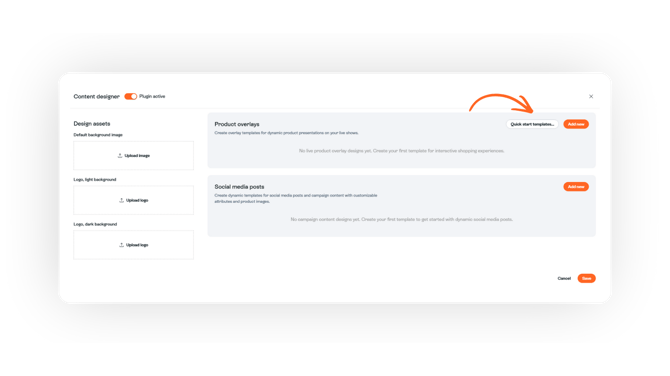
When the support team has activated the plugin, you can find it by going to "Page settings" → "Plugins" → "Content designer".
Step 2
In the top right, you can click "Quick start templates..." if you want to either use the templates, or get inspiration on how they can be designed. Otherwise, click "Add new" if you want to start from scratch.
If you plan to use our templates, click "Copy this template", and it will be created for you.
Step 3
After creating your design, there are different customization options for your design. The most notable is the "Product data" section. Here is a short list of what it can show:
Product data:
-
Buy code: The buy code for the product. For example "shop 100", or "shop a".
- Discount: The price difference between before price and sales price, in numbers.
- Discount percentage: The price difference between before price and sales price, in percentage.
- Image: The product image will be shown here.
- Information: The product information.
- Name: The product name.
- Original price: The before price (SRP).
- Price: The price it is sold at.
- Variants: Lists all variants enabled on the product.
If you wish, at the top of the designer, there are some customization options, where you can add some slight touches to the overlay.
Once you have completed your design, your overlay graphic could be like the example shown below: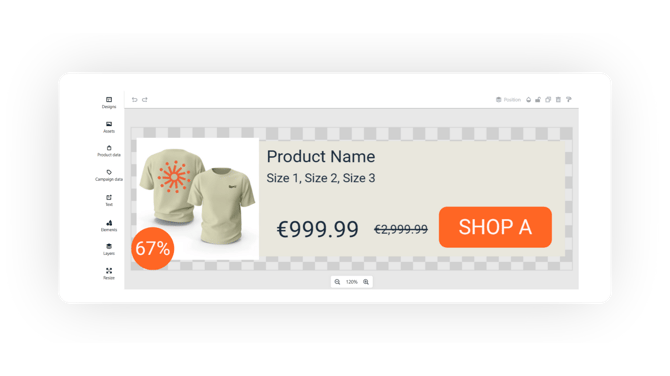
When you are done with your design, don't forget to click "Save" in the top right corner.
Applying the overlays to your campaigns
In order to apply your custom overlays to your campaign, go to "Products" in the campaign you want to apply it to.
On the right side of "Add products", there will be a "Select product overlay..." button.
Click on it, and select your overlay.
Now, after a short minute or two, the product signs will be shown with the new overlay you just created.
Tip: If you want to know more about playing the overlays in the Control center, you can read our guide here.