![SPRII-udenR_logo-orange+dark.png]](https://help.sprii.io/hs-fs/hubfs/SPRII-udenR_logo-orange+dark.png?height=40&name=SPRII-udenR_logo-orange+dark.png)
Last updated: January 2026
Applies to: Shopify users
Category: Welcome to Sprii: English Guides
💡 Top takeaways
Learn how to connect your Shopify store with Sprii in a few clicks and create live shopping events and image posts. This article covers everything you need to know to get started with live shopping on Shopify.
Table of contents
Integrate your Shopify store with Sprii
Important to note
- It's important that you understand the distinction between the two checkout types Draft order and Shopping cart.
- When you're using the regular cart (not draft order), make sure the products are active in Shopify.
- Product bundles are not supported.
- If you want different prices on different variants of the same product, reach out to Sprii's support team to activate this feature.
Integrate your Shopify store with Sprii
Step 1
Navigate to Page settings and click on E-commerce integration in the navigation bar. Click on Shopify.
Step 2
Activate and fill in your Shopify URL: yourdomain.myshopify.com.
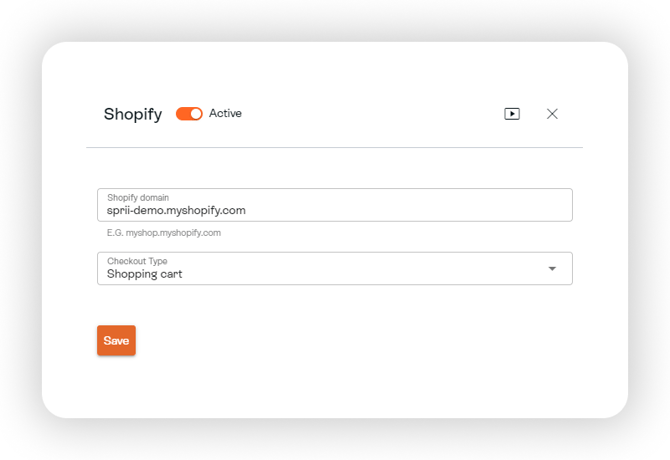
If you know how to find your domain, simply insert it and go directly to step 3. If not, this is how to identify your Shopify domain:
.png?width=670&height=516&name=Shopify%20(1).png)
Go into your Shopify account and click Settings in the bottom left corner. Now, you can see your Shopify URL just below your store's name. Copy the URL and insert in Sprii.

Step 3
Click Install App.-1.png?width=580&height=399&name=IMAGE%20-%20VERTICAL%20RECTANGLE%20W.%20SHADOW%20(2)-1.png)
Step 4
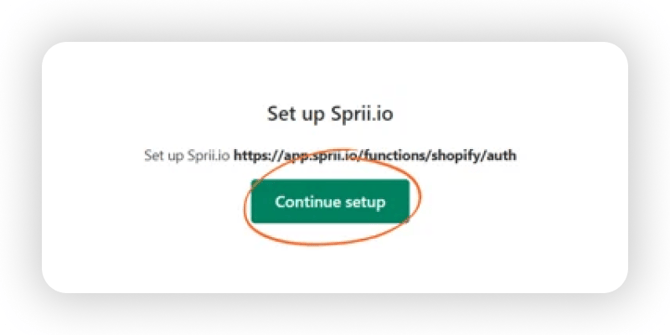
Click Continue setup.
Step 5
You will be redirected to your Shopify store. Simply click Install to proceed.
-1.png?width=580&height=399&name=IMAGE%20-%20VERTICAL%20RECTANGLE%20W.%20SHADOW%20(3)-1.png)
Step 6
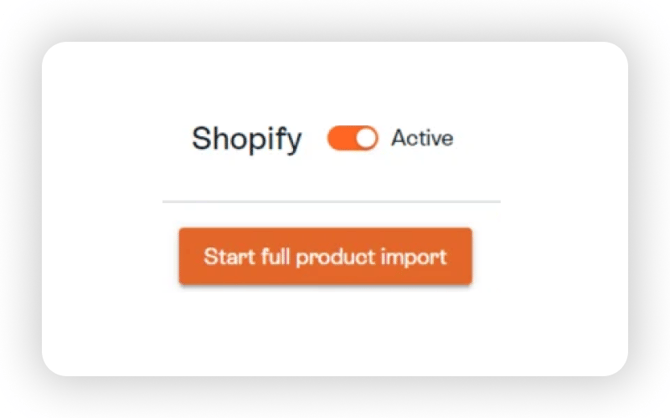
Press the Start full product import button in order to sync all your Shopify products to Sprii. It may take 1-2 minutes before the import is finished.
Step 7
Now, you need to select Shopping cart as your checkout type.
-1.png?width=580&height=399&name=IMAGE%20-%20VERTICAL%20RECTANGLE%20W.%20SHADOW%20(4)-1.png)
The shopping cart is the most frequently used feature on Shopify. It functions like an open basket for customers browsing your website, allowing them to add and remove products as they shop. The prices shown will be those listed on your site.
If you want to offer special discounts during your live shows, you can provide discount codes directly in the chat (DM) along with a link to the checkout. This way, customers can apply the discount code when they complete their purchase.
Step 8
Click activate and save and you're all set!
Any Questions?
Need help? Our support team is here for you Monday to Friday from 09:00 to 16:00 CET (Fridays until 15:30). For urgent matters, we're available until 22:00 CET on weekdays and 15:00-21:00 CET on Sundays.
Contact us at support@sprii.io or call +44 74 76 545 725