![SPRII-udenR_logo-orange+dark.png]](https://help.sprii.io/hs-fs/hubfs/SPRII-udenR_logo-orange+dark.png?height=40&name=SPRII-udenR_logo-orange+dark.png)
YOU WILL LEARN
How to turn on Product Scraper and add campaign products from public product addresses.
BEFORE YOU START
Your Sprii Page must have no active webshop integration. Use a public product address that opens normally in a browser, and try one product before importing a list.
Set up the plugin
- Go to Page settings
 > Plugins
  . On Product Scraper, click Configure.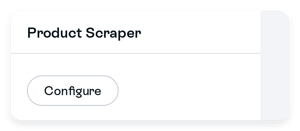
- Click Activate plugin
 , then Save to keep the change.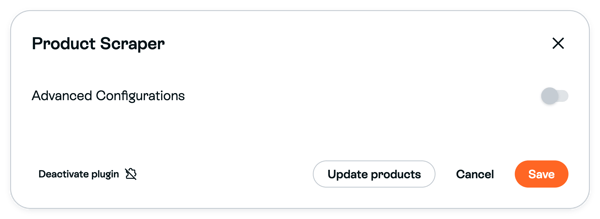
The settings picture shows Save available after a change. Activation is not finished until you save. These settings apply across the Page and affect the next scrape, including in existing campaigns.
Add one product
- In Sprii, go to Campaigns
 and open the intended campaign. Go to Products
  > Add > New campaign product.
- Paste the product address into URL. Click the download icon, Fetch Product Information.
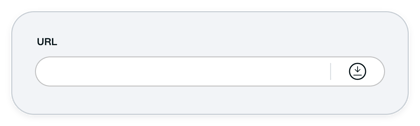
- Check the returned name, price, pictures and other details. Complete missing required values and resolve validation errors. To edit a returned name or price, select Custom for that field first.
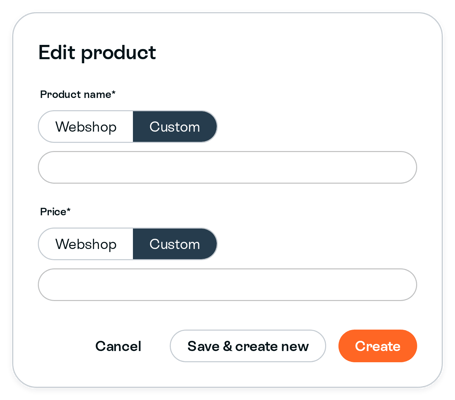
- Click Create. The form closes; check that the product appears in the campaign's Products list.
Important: Fetching fills the form. It does not save a product. Cancelling before Create saves nothing.
Check the product's buy codes and other campaign requirements before the show.
Import a list
- Prepare an Excel .xlsx file: URL as the first-row column header, then one product address per row.
- In Sprii, go to Campaigns and open the intended campaign. Go to Products > Add > Import > URL Import List.
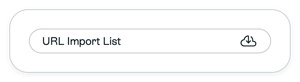
- Select the file. Processing starts immediately; there is no separate Upload button.
- Wait for the resulting products, then compare their addresses and details with your list.
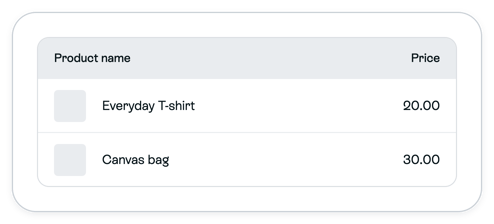
The picture shows example rows. A failed address can be skipped while others import. An existing product with the same address may be updated, so the row count alone cannot confirm the whole list imported.
Limitations
Product Scraper fills campaign products, not the Page catalog. Public pages can still block scraping or omit information. Check every product's details and campaign requirements; appearing in the list does not make the campaign ready.
Optional Auto-scrape in interval in Product Scraper settings requires Save. It rechecks existing scraper products in active campaigns about every two hours, including campaigns created earlier. It adds no missing products. Name and price can be overwritten unless set to Custom.
Need help? Contact Sprii Support