![SPRII-udenR_logo-orange+dark.png]](https://help.sprii.io/hs-fs/hubfs/SPRII-udenR_logo-orange+dark.png?height=40&name=SPRII-udenR_logo-orange+dark.png)
YOU WILL LEARN
How to start a native or scheduled Facebook live video on your Page and check its connection to a prepared Sprii campaign.
BEFORE YOU START
- A Sprii account with your Facebook Page connected. See Connect Meta to Sprii.
- Facebook access to the intended Page (full or partial control), so you can switch into the Page for the steps below. Task access alone cannot switch into the Page. To change its messaging setting, Meta requires Full control of that Page.
- Facebook Live available for the intended Page. Meta currently requires an account at least 60 days old and a Page with at least 100 followers; check your actual access and restrictions. See About Facebook Live.
- A prepared Live Shopping campaign on the same Page, with products, replies and the order deadline set
Allow people to message your Page
Sprii uses Messenger to reply to viewers. Turn Page messaging on before your first show. Meta requires Full control to change this Page setting; that requirement is specific to this setting.
In Facebook on desktop, open your profile picture, choose See all profiles and switch into the Page. Open the Page picture > Settings & privacy > Settings > How people find and contact you, then turn on Allow people to message your Page.
Check the campaign for this show
- Return to the prepared campaign in Sprii and open Timing
 and check that When will you go live? and How long will you be live? cover the show. Timing changes save immediately. Avoid overlapping live campaigns on this Page.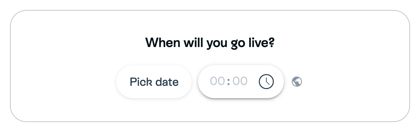
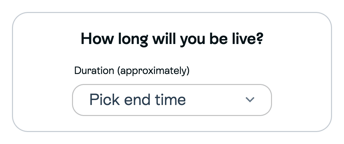
- If you use the Sprii Host App, return to this campaign and open Streaming
 and turn on the Facebook destination for your Page; the change saves immediately. This destination setting is for streaming through Sprii.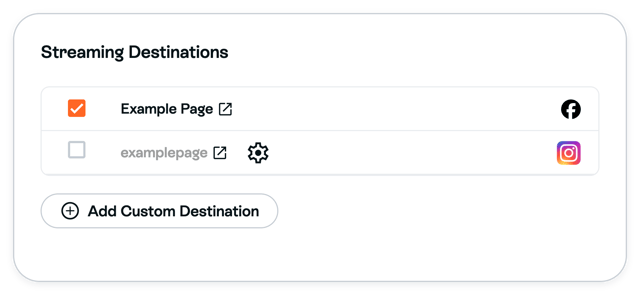
Create the live video in Facebook
If you want to announce the show ahead of time, create a live video event on the intended Facebook Page. On a computer, the route is Live video > Create live video event > Create event. Add the event details and announced start date and time, then use Next > Create event. Check the date and time in the confirmation popup. If Facebook shows a time zone, check that too.
Follow Create and promote a Facebook Live event for the complete cover, details, access, public-audience and promotion choices.
Creating the event does not create or connect a Sprii campaign, and its announcement post is separate from the video post produced when you broadcast. A general calendar event for RSVPs is not a substitute for preparing the live video.
Keep the announced event time and campaign timing aligned. Sprii can associate the native Facebook live video during the campaign’s listening period; matching advertised times alone does not guarantee the connection. You can also start a native Facebook live video without scheduling an event ahead.
Go live
The Sprii Host App is available only when enabled for your Page. To use it instead of Facebook's streaming controls, follow Stream from the Sprii Host App.
- Return to the same campaign in Sprii and open Overview

- Confirm that every campaign step is complete.
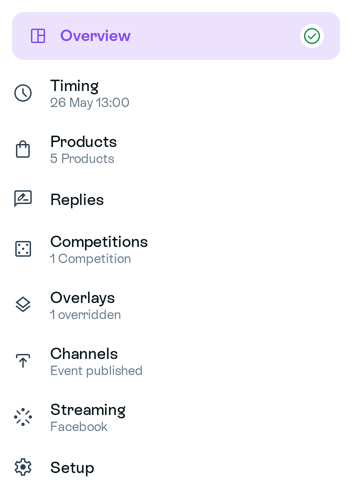
- Start the broadcast using the route you prepared:
- Scheduled Facebook event on a computer: open Scheduled broadcasts, choose your event, then Set up live video. Check the video source and preview, then click Go live now when ready. Meta’s connected streaming-software route can start at the scheduled time; an event alone does not supply live video.
- Native Facebook video on a computer, with no scheduled event: switch into the intended Page and click Live video next to What’s on your mind?. Click Select below Go live, choose Webcam under Select a video source, and add the title and description under What’s your live video about?. Check the preview, then click Go live. Use the prepared streaming-software source instead only if you have set up that method. See Go live from your Facebook Page.
- Sprii Host App: use the start procedure in Stream from the Sprii Host App, with this campaign and its Facebook destination prepared.
- Check that the live video appears on the intended Facebook Page. In the same Sprii campaign, open Channels
 and check that the actual video post is connected. A ready-state illustration or an event announcement does not prove that either action succeeded.
For a native Facebook video, automatic association depends on the campaign’s listening period. If the actual video post is missing from the campaign, use Connect to existing posts > Add Facebook Post in Channels and follow Connect a social media post to Sprii.
Limitations
- Facebook controls the live video, Page settings, and feed behavior.
- Sprii sends the configured Messenger reply. Meta decides whether it reaches the viewer.
- Sprii uses the campaign’s listening period when automatically associating a native live video. If it does not connect, follow Connect a social media post to Sprii.
- Multistreaming to more than one Facebook Page requires every Page to be connected to Sprii and the campaign to be connected across those accounts. Multistreaming is available only when enabled for your Page. See Connect a campaign across multiple owned accounts.
Need help? Contact Sprii Support