![SPRII-udenR_logo-orange+dark.png]](https://help.sprii.io/hs-fs/hubfs/SPRII-udenR_logo-orange+dark.png?height=40&name=SPRII-udenR_logo-orange+dark.png)
The Product feed plugin lets you search a feed supplied by your webshop or developer. You choose which products to use in a campaign. Saving the feed does not instantly import every product into a complete Sprii catalog.
You need administrator access to the intended Sprii Page, a feed URL in Google Shopping format, and an editable campaign on that Page. If the feed requires basic authentication, get its username and password from the person who provides the feed.
Activate and save the feed
- Select the intended Page. Open Page settings
 > Plugins
- On the Product feed card, click Configure.
- Click Activate plugin
 before entering the settings. Activation and field edits are not saved until you click Save.
 - Set Checkout Type to GoogleShopping. Despite the field's label, this selects the feed format.

- Paste the feed URL supplied by your webshop platform or developer into Feed URL.
- If that feed requires basic authentication, select Enable authentication
 and enter the supplied Username and Password in the basic-authentication fields. Keep those credentials private. Leave authentication off for a public feed that does not require it.
- Click Save
 . Resolve any required-field or terms prompt shown before continuing. Cancel discards unsaved changes.
 - With the dialog still open, click Peek Feed
 . It previews up to 500 parsed rows using the saved settings. Check that the results contain the products you expect, then close the preview and settings.
Previewing the feed makes no promise that its whole catalog has been imported. If you change the URL or credentials, save again before using the preview.
Add a feed product to your campaign
- Open the intended campaign on this Page, then Products

- Click Add, then choose Product from catalog....
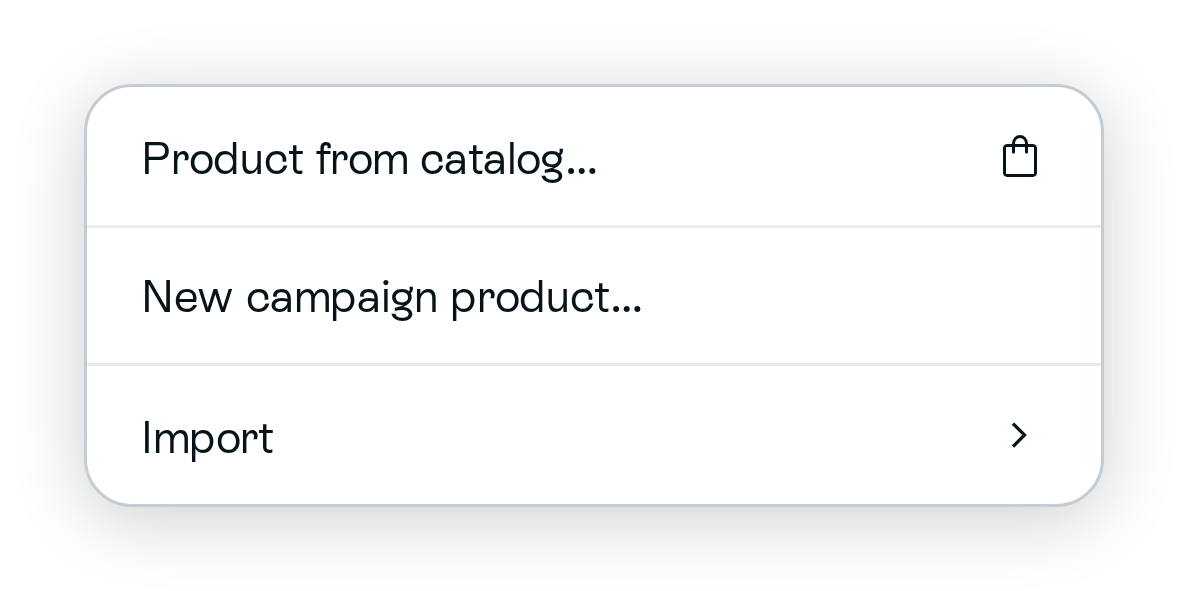
- Use Filter to find the product, select its checkbox and use the Add products button to add your selection. The button shows how many products you selected.
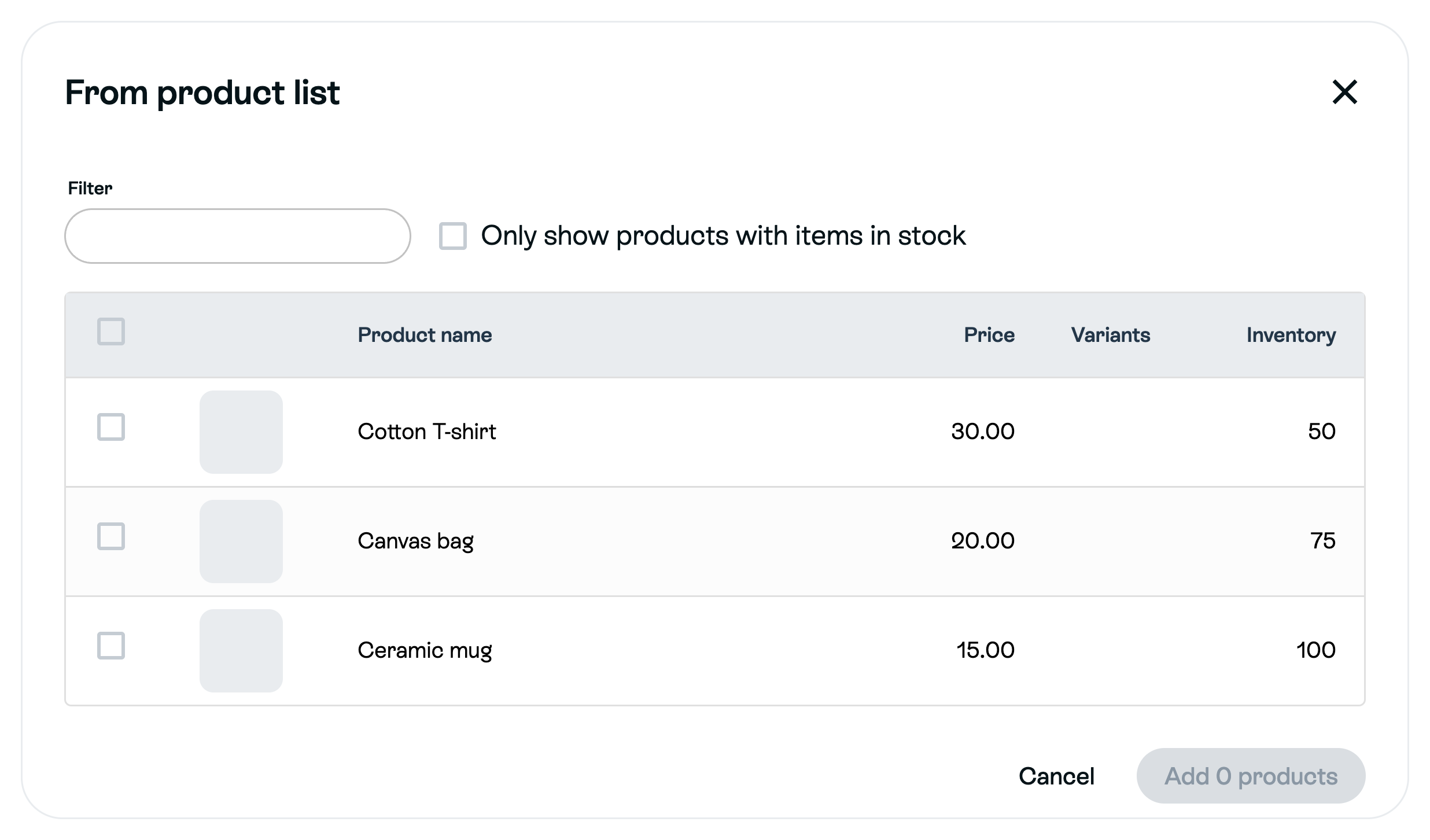
- Find the added product in the campaign's product list and open it to check its details, variants and inventory.

The pictured products are examples of the selection screens, not confirmation of a feed import. Your selected product is now used by this campaign; other feed products still need to be selected when you want to use them.
Set a campaign-specific quantity when needed
In the opened campaign product, find Inventory. Choose Custom in its Webshop / Custom control before entering a finite quantity. If the infinity control is on and the field shows No max, enter your finite quantity; this turns unlimited inventory off. Click Save to keep the change.
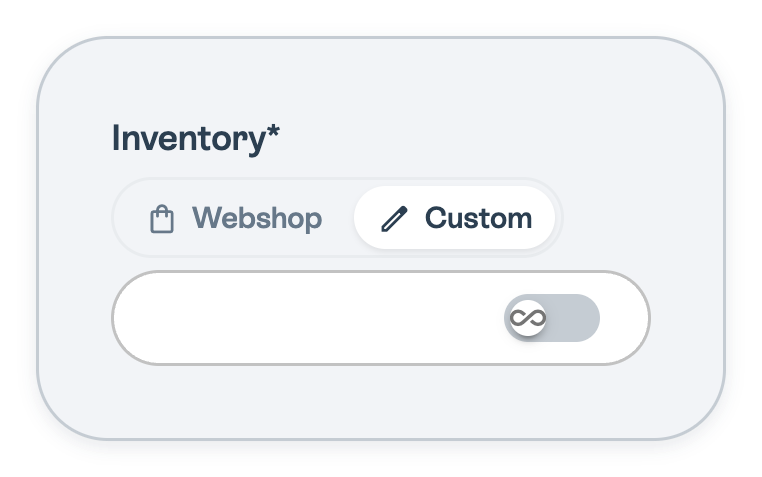
The picture shows Custom with unlimited inventory off; enter your own quantity.
Custom preserves that campaign inventory during feed refresh. Keep Webshop when you want the imported value to apply. For a product with variants, check the relevant variant quantities too.
Understand refresh and stock
- The feed is searched live or from a cached copy. Sprii stores products in the Page catalog when they are selected or refreshed, and the campaign keeps its own product values. If something differs, compare the feed, Page catalog and the campaign product.
- Saving valid feed settings schedules refresh about every 15 minutes for products used by eligible active campaigns, including campaigns created before you configured the feed. This is an interval, not a completion-time guarantee.
- For an on-demand refresh, return to Page settings > Plugins > Product feed > Configure and click Update products
 . This requests a refresh of products used by active campaigns; it is different from Peek Feed and does not import every feed product. Compare the product values afterwards rather than looking for a promised success badge.
 - For an in-stock product, Sprii reads a finite quantity from the feed’s
inventory_quantityfield by default when that value is present. An in-stock product without a finite mapped quantity can have unlimited inventory. An unavailable product resolves to zero. - Feed rows sharing the same
item_group_idare grouped as one product with variants.
Need help? Contact Sprii Support