![SPRII-udenR_logo-orange+dark.png]](https://help.sprii.io/hs-fs/hubfs/SPRII-udenR_logo-orange+dark.png?height=40&name=SPRII-udenR_logo-orange+dark.png)
Copy extra information from a Shopify Product metafield into Product name, Product information or Colli size in Sprii. Save the source value in Shopify, save its mapping in Sprii, then import and check the Page catalog.
Before you start
Use a connected Shopify integration, with permission to edit that integration in Sprii and product metafields and products in Shopify. Reuse an existing Product metafield if it holds the information you need. This route covers Product metafields, not other Shopify resources.
Prepare the field in Shopify
- Open Products and a product in Shopify. In Metafields, click Add definition if you need a new field.
- Enter a clear Name and note its Namespace and key. For example, Material might use
custom.material. Under Select type, choose Single line text, keep One value, and click Save. Follow Shopify's definition instructions. - Return to each relevant product, find that definition in Metafields, enter its value and save the product. Use View all for an unpinned field. For example, Material could contain
100% cotton. See Shopify's value instructions.
The definition identifies the field; saving it does not fill every product. Single line text with one value is the setup used here, not a guarantee that Sprii validates or supports every Shopify type.
Map it in Sprii
- On the intended Sprii Page, open Page settings
 > E-commerce integration
  . Find Shopify and click Configure.
- Select Sync product metafields
 to show Product metafield mappings, then click Add mapping
- In Metafield, choose the Product metafield with the matching namespace and key, such as
custom.material (Material). - Before choosing Product Field (Optional), decide what the value should change. Product name replaces the Shopify title stored in Sprii on each sync. Leaving the destination blank stores internal metadata but fills no visible product field; blank is a cleared choice, not a fourth destination.
Choose one of the three destinations:- Product name to replace the imported title.
- Product information for descriptive text, such as the Material example.
- Colli size for a numeric quantity, such as
6. A value Sprii cannot read as a number is skipped, leaving that field unchanged.
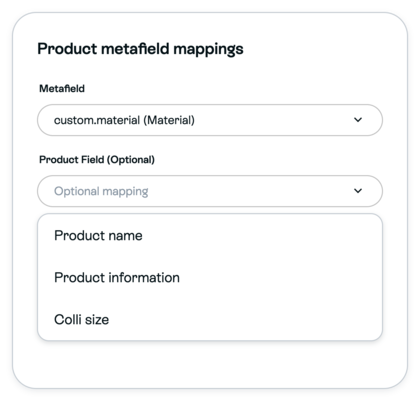
- Read and accept any required integration terms shown. If Shipping rules with draft orders is shown and awaits acceptance, select its required checkbox after reading it. Click Save
 to store the mapping.
Import and check the result
- In the Shopify configuration, click Start full product import
 . Saving the mapping and importing products are separate actions.
 - After the import finishes, open Page settings > Product catalog
 , open the product and check the destination you selected. Material mapped to Product information should appear there. The picture illustrates this result; it is not a record of your import.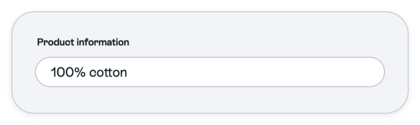
Mappings apply to full imports and Shopify product updates in the Page catalog. Products already in a campaign can retain an older copy. Preserve campaign-specific edits before deliberately refreshing or re-adding a product, then check that campaign's value too. A sign or overlay shows the value only if its template uses the selected field.
Need help? Contact Sprii Support