![SPRII-udenR_logo-orange+dark.png]](https://help.sprii.io/hs-fs/hubfs/SPRII-udenR_logo-orange+dark.png?height=40&name=SPRII-udenR_logo-orange+dark.png)
Last updated: January 2026
Applies to: All Sprii users
Category: Welcome to Sprii: English Guides
💡 Top takeaways
Read on to learn how to create an image post campaign in Sprii step by step. Also, learn how to make an already existing social media post shoppable.
Table of contents
How to create an image post campaign
Other relevant reads
Live shopping with prerecorded videos
How to create an image post campaign
In this video, Marc will show you that it's possible to create an image post campaign in less than 40 seconds. Impressive! To read the step-by-step guide, look below the video.
Note: Some features may look slightly different when accessing Sprii today.
Step 1
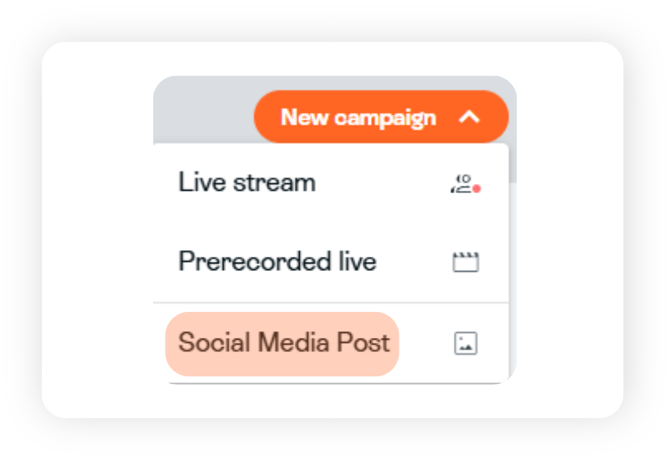
Start by creating a new campaign, and pick the option 'Social Media Post'
Step 2
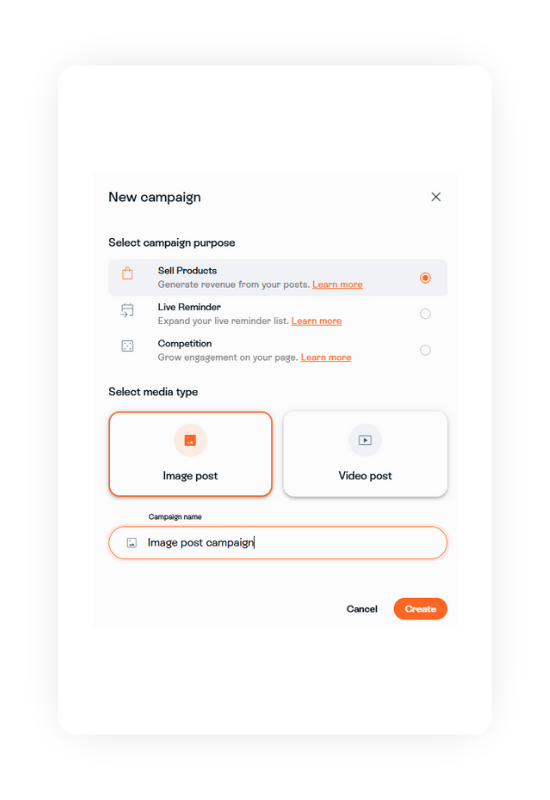
Select the campaign purpose. This guide will focus on 'Sell Products'. Select media type, name your campaign, and then click 'Create'
Step 3
Add your product(s). This step works the exact same way as if you were doing a live shopping campaign. If you use a webshop integration you will choose 'product from catalogue' and if not, pick 'new campaign product'.
-png.png?width=670&height=377&name=image%20post%20(1)-png.png)
Step 4
Fill in your content. Now you should add some nice pictures to post along with a good and explanatory caption.
-png.png?width=670&height=335&name=image%20post%20(2)-png.png)
It's possible to upload pictures from your computer or use the product image from your webshop.
-png.png?width=670&height=209&name=image%20post%20(3)-png.png)
Next it's time to a caption, where you clearly explain the product(s) and how people can buy the product.
-png.png?width=670&height=419&name=image%20post%20(4)-png.png)
Step 5
Decide what platforms you want to post the campaign to under the 'Publish' tab
-1.png?width=670&height=261&name=Horizontal%20template%20(1)-1.png)
In the image example above the post will be published to both Facebook and Instagram. Simply tick off the boxes you don't want to publish to.
Step 6
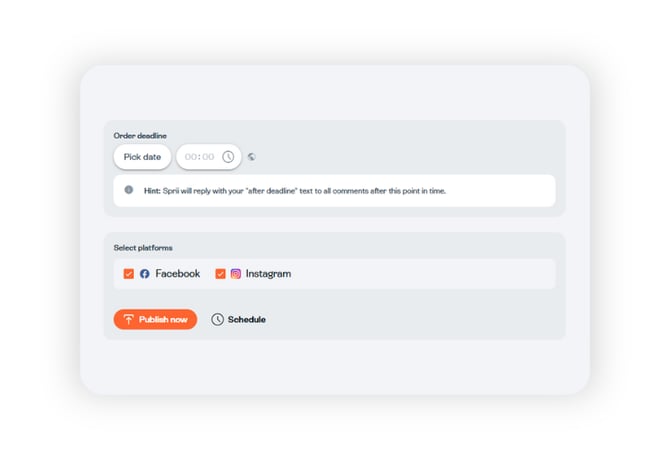
Time to post the campaign! You can either post it now, or schedule it for later.
You should also define order deadline, how long people will be able to buy from the post. After the deadline set passes customers won't be able to buy the product from this post anymore.
Important to note
A scheduled post may take 20 min from scheduled time to be seen on social media.
Done! You're post is now ready to receive orders.
Any Questions?
Need help? Our support team is here for you Monday to Friday from 09:00 to 16:00 CET (Fridays until 15:30). For urgent matters, we're available until 22:00 CET on weekdays and 15:00-21:00 CET on Sundays.
Contact us at support@sprii.io or call +44 74 76 545 725