![SPRII-udenR_logo-orange+dark.png]](https://help.sprii.io/hs-fs/hubfs/SPRII-udenR_logo-orange+dark.png?height=40&name=SPRII-udenR_logo-orange+dark.png)
First, check the Page list
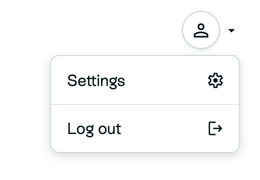
In Sprii, open the top-right profile menu, then Settings > Accounts, and look for the intended Facebook Page.

- The Page is listed as a gray card: it is available to connect. Follow the next section.
- The Page is missing entirely: check the Facebook profile and permissions below. Sprii can show only the Pages Meta returns for that profile.
If the Page is listed
On the intended gray card, select Activate if the Page has no subscription, or Connect if it already has one. Follow any onboarding Sprii opens, then check that the intended Page appears among your connected Pages and select it to work with it.
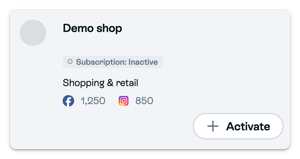
A gray card alone is not a reason to reset Meta permissions.
If the Page is missing
- In Settings > Accounts, check which personal Facebook profile is connected. It must be the profile that can manage the intended Page and authorize its connection to Sprii. If you have not connected a profile yet, follow Connect Meta to Sprii, then return to Accounts.
- Check that same profile's Page access on Facebook. Use Meta's instructions to see your Page access. If the profile lacks the access needed to manage the Page, ask the person who manages Page access to correct it before continuing.
- Back in Sprii Accounts, open the three-dot menu beside that Facebook profile and select Renew Meta Permissions
 and complete the Meta authorization using the intended profile and Page.
- Return to Accounts and choose Refresh pages from the same three-dot menu. Check the Page list again.
- When the Page appears as a gray card, select Activate if it has no subscription, or Connect if it already has one. Check that it appears among your connected Pages and select the intended Page.
Refresh pages checks the Page list after authorization. Renew Meta Permissions opens authorization with Meta. If you see Your token is invalid, follow the token recovery guide for the separate Refresh token action.
Need help? Contact Sprii Support