![SPRII-udenR_logo-orange+dark.png]](https://help.sprii.io/hs-fs/hubfs/SPRII-udenR_logo-orange+dark.png?height=40&name=SPRII-udenR_logo-orange+dark.png)
Choose whether the competition will run during a live show or in a standalone social post. For a live show, this guide covers raffles, quizzes, polls and treasure hunts. For a standalone post, it covers planning and a comment-to-enter raffle.
Choose where the competition will run
- During a live show: have your Live Shopping campaign ready, with Competitions available for the Page. Use the four illustrated walkthroughs below, then run the competition in Control Center.
- In a standalone post: choose Social Media Post, then the Competition purpose. This creates a Competition (Image) or Competition (Video) campaign for your post. Use the separate raffle setup below. Availability depends on your account and the features enabled for your Page. Poll is live-only.
Decide the participation words or answers, any prizes and the instructions you want to give winners. The example names and words in the pictures are illustrative; enter your own.
Plan the prize, entry rule and post
Tell followers what they can win, how to enter, when entries close and when you will announce the winner. Keep each instruction short. For example: "Guess how many bottles are in the picture and comment your answer as a number. Entries close Sunday at 20:00, and we announce the winner in our next live show."
Ask for a simple word or number. Do not rely on punctuation to distinguish one answer from another. Choose words that are easy to hear and type when you explain the competition aloud.
Make the prize and the way to enter easy to see in your image or video. A person from your brand can present the competition when that fits your content. Use the first lines of the post to name the competition, the prize and how to enter. Keep the rest for the deadline, the winner announcement and your terms.
Important: For Facebook, do not require entrants to share on a personal timeline, share on a friend’s timeline, or tag friends as a condition of entry. Do not encourage entrants to share, repost or tag others to enter or promote the competition. Read Meta's Pages, Groups and Events policy and follow the rules of every platform where you publish.
Mention the competition in your existing social posts, email or in-store promotion before the show. Use the number of competitions your host and team can manage. One can be enough; use separate competitions for prizes you want to draw at different moments. Meta controls how your post is shown; Sprii does not guarantee participation, reach or engagement.
Prepare a raffle for a standalone post
Create the standalone campaign
- Go to Campaigns
 and click New campaign

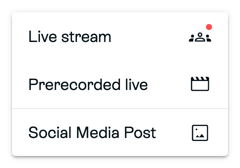
- Choose Social Media Post.
- Under Select campaign purpose, choose Competition. Under Select media type, choose Image post or Video post for the content you plan to publish.
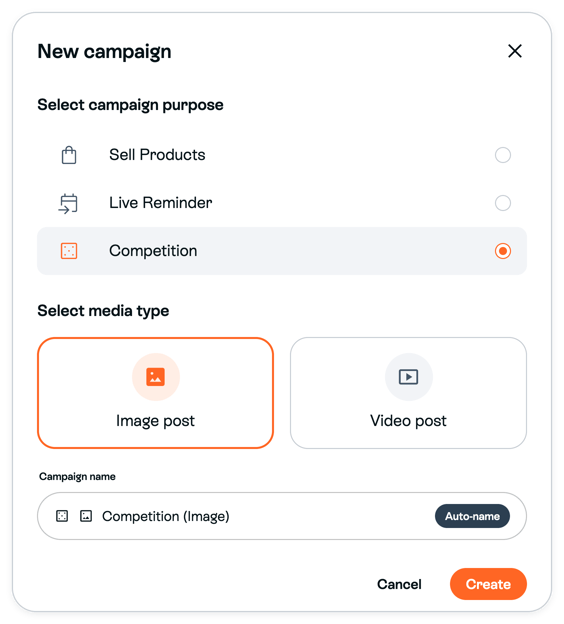
- Check Campaign name, then click Create. Creating the campaign does not publish the post.
Competition is a purpose inside Social Media Post, not a separate choice in the New campaign menu. A campaign named Competition (Image) or Competition (Video) uses that same standalone purpose. If you already have the intended Competition campaign, reopen it instead of creating another. If Competition is unavailable for your Page, contact Sprii Support rather than choosing Sell Products as a substitute.
Prepare the raffle
Use the standalone Competition campaign you just created or reopened, rather than a Live Shopping campaign.
- Go to Campaigns and find the intended Competition campaign. Choose Open > Edit.
- Select Competitions
- Click New competition
 and choose Raffle.

- Enter a Competition name. Choose Word or Number and enter the participation value your post will ask people to comment.
- Set How many winners to draw and the Open for participation state. Keep participation closed until you want to accept entries.
- Open Replies. Write the participation Private reply and the winner's Public reply and Private reply where offered. Put the prize-claim instructions in the private winner message. Use at least four meaningful variants for automated public replies; Sprii recommends eight.
- Click Create
 to save the raffle. Check that it appears in the campaign's Competitions area and resolve any required-field error before continuing.
Prepare the post and manage participation
Keep the entry rule in your post consistent with the saved raffle. In Content, prepare the image or video for your post and its Campaign text before publishing. Check the post preview; it approximates the Facebook layout and may differ from the published post.
Use the campaign’s Publish step when you are ready to publish the post. Creating the raffle does not publish it. If your social post already exists, use the separate Connect a social media post to Sprii instructions from that step. Check that the intended post is connected to the intended campaign.
In Competitions, use the raffle’s Show participants view to check entries. Its Open or Closed (Drawn) status helps you distinguish an active raffle from one that has already been drawn.
Reopen the saved raffle from Competitions to find its Open for participation and Draw winner controls. Close participation at your announced deadline before drawing the configured winners. Check the selected winners and follow your prepared prize instructions. Meta controls whether competition replies and winner messages reach recipients; a selected winner is not proof that a private message arrived.
Quiz and Treasure hunt are also offered in the standalone competition menu, but the detailed walkthroughs below describe their live-show setup. Standalone editors have Settings and Replies; do not use the live-only Presentation or Control Center steps for a social post. Poll is disabled for standalone posts.
Open the live competition editor
- Go to Campaigns and open the intended Live Shopping campaign.
- Select Competitions
- Click New competition and choose the format you want to prepare below.
For automated Public reply templates, including public winner replies, use at least four meaningful variants; Sprii recommends eight.
Set up a raffle
Choose Raffle.
For a word or number raffle, viewers enter by commenting your participation value. Eligible participants are randomly ordered when winners are drawn.
- Enter a Competition name you will recognize during the show.
- Choose whether Open for participation should be on. Keep it off until you announce the raffle if you do not want an ordinary word to collect early entries.
- Under User comment to enter raffle, choose the entry rule:
- Word or Number: enter the exact participation value viewers should comment. The picture uses summer as an example word.
- Closest to: enter the target value in Number. Ask viewers to guess that value, such as the number of beans in a jar; the closest guesses determine the winners.
- Set How many winners to draw. That configured number is selected together. Create separate competitions if you want draws at separate moments.
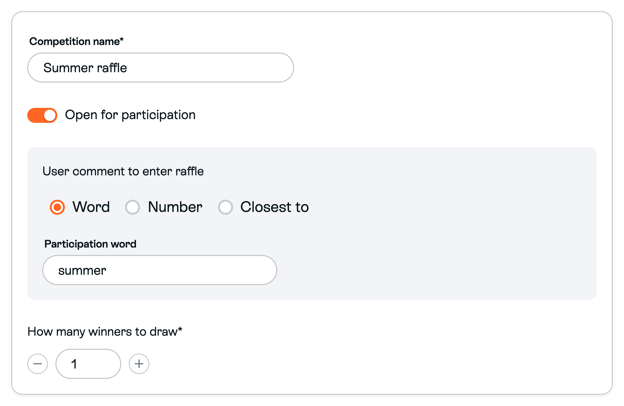
Tell viewers the entry rule and prize count before opening participation. Closest to is a Raffle option; it is not a Quiz answer mode.
Open Replies. Select the participation word or number to write its Private reply. Select Winner reply to enter the winner's Public reply and Private reply where offered. Put the winner's next steps in the private message.
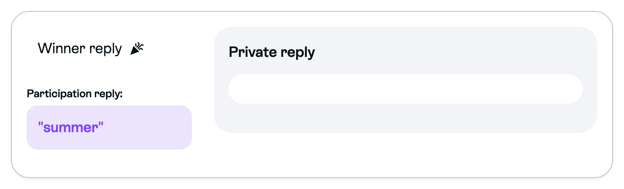
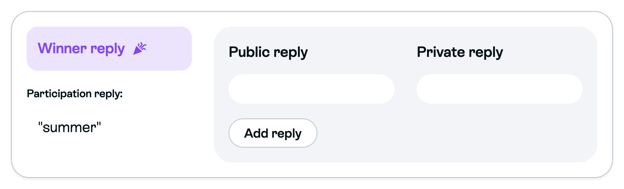
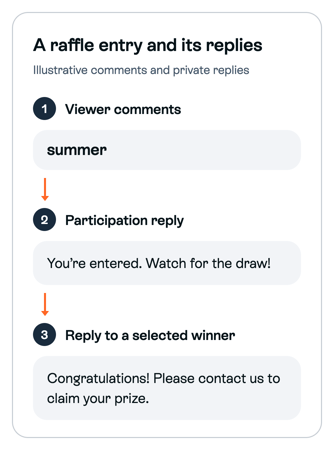
Use the participation reply to confirm the entry and explain when you will draw. Use the winner reply to explain how to claim the prize. In this illustrative example, the viewer comments summer. The participation reply confirms their entry; the winner reply goes only to a selected winner. Private replies remain subject to Meta delivery rules.
Finish with the optional presentation and Create steps below.
Set up a quiz
Choose Quiz.

Viewers participate by commenting an answer to your question. Winners are selected from the first participants who guess correctly; this is different from a random word or number raffle.
- Enter a Competition name and choose the Open for participation state.
- Select Word or Number, then enter the correct answer. The example uses blue.
- Use Add wrong guess for incorrect answers that should have their own reply. The example recognizes green as a wrong guess.
- Set How many winners to draw.
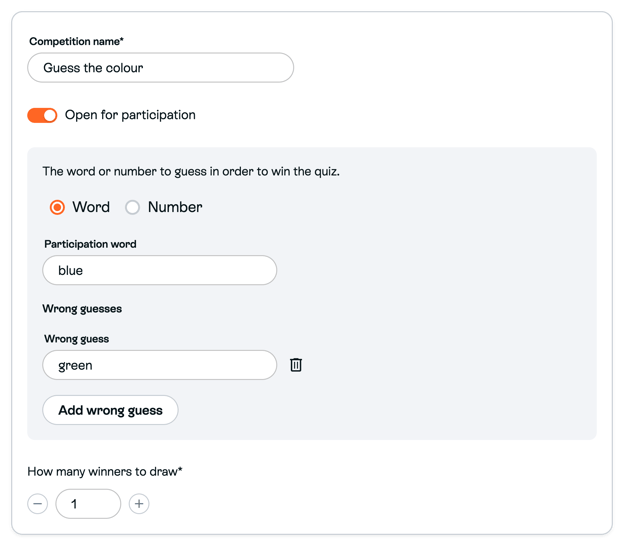
For a numeric quiz, you can select Range on a wrong guess and enter From and To. For example, with 819 as the correct answer, use 1 to 818 for a “try higher” hint and 820 to 2000 for a “try lower” hint. Keep wrong-guess ranges separate from the correct answer and from each other. Correct any Has overlap error before creating the quiz.
In Replies, choose the correct answer under Participation reply and enter its private reply. Choose each configured incorrect answer under Wrong guess reply for its private reply. Winner message is a separate context with public and private fields.
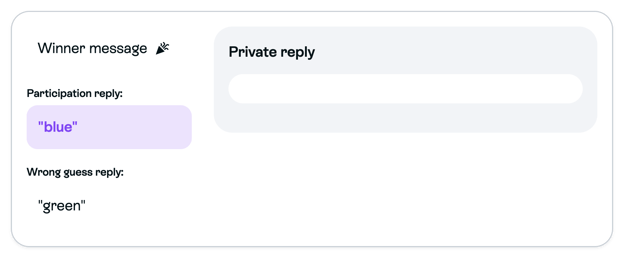
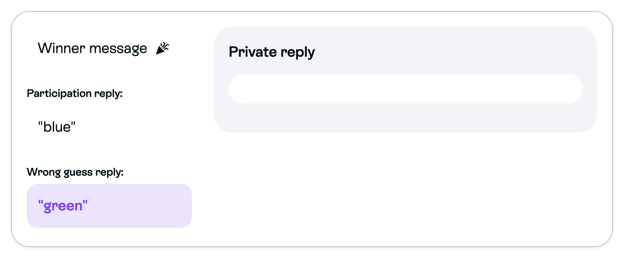
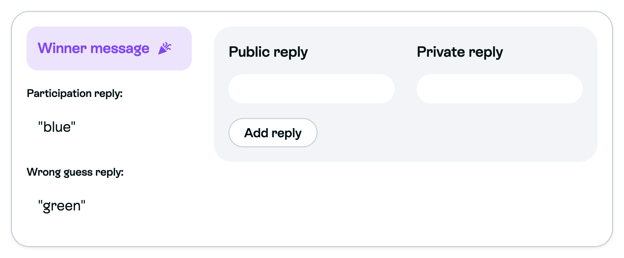
Use wrong-guess replies to help viewers try again. A correct-answer reply confirms participation; it is not a winner notification. Give prize instructions in Winner message. The illustrative example below uses green and blue to match the pictured settings; its private replies remain subject to Meta delivery rules.
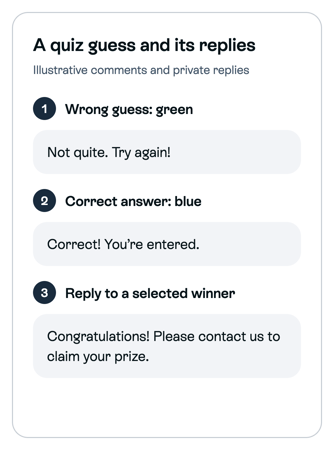
Finish with the optional presentation and Create steps below.
Set up a poll
Choose Poll.

Viewers vote by commenting one of your choices. A poll is for a live show; it has no winner and cannot be used as a standalone social competition post.
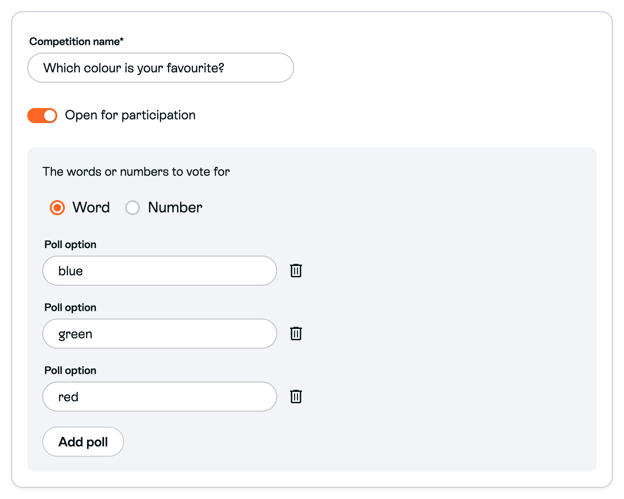
- Use Competition name for the poll question. The example asks viewers to vote for their favorite color.
- Choose the Open for participation state.
- Select Word or Number, then use Add poll to add each voting choice. For example: blue, green and red.
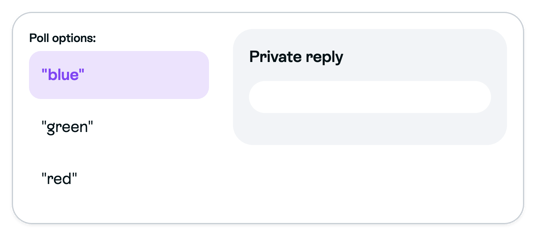
In Replies, select an option under Poll options if you want to add a private voting reply. This is optional; there is no winner reply to configure.
Finish with the optional presentation and Create steps below. During the live show, use the poll results instead of drawing a winner.
Set up a treasure hunt
Choose Treasure hunt.

Viewers look for several words or answers during the show and comment the treasures they find. Eligible participants are grouped by treasures found and randomly ordered within the winner flow.
- Enter a Competition name and choose the Open for participation state.
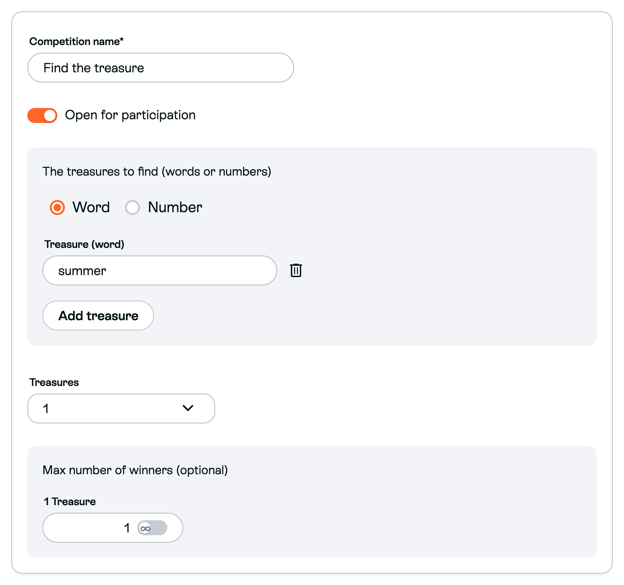
- Select Word or Number. Use Add treasure to add each answer viewers should find.
- Use Treasures to set the qualifying level and Max number of winners (optional) to set the winner limit for each level you use. For example, a show can offer one prize level for finding two treasures and another for finding three; configure the intended levels before the show.
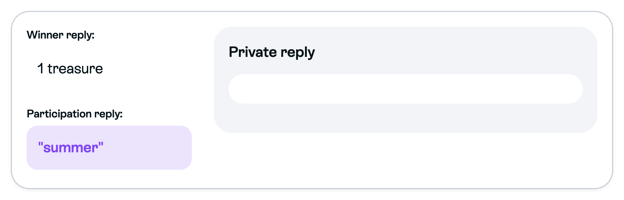
In Replies, select a treasure under Participation reply to write its private response. Select a qualifying level under Winner reply to write that level's private winner message. This winner context is private-only.
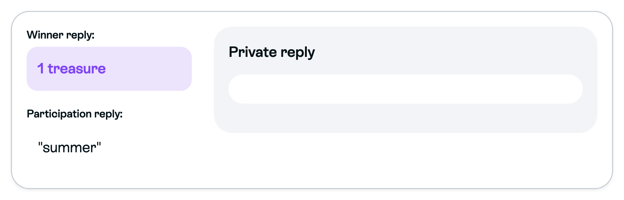
Finish with the optional presentation and Create steps below.
Add an optional presentation and create the competition
A presentation can show participation instructions during the live show. It is optional; you can explain the entry rule aloud or use an info box instead.
- If you want a presentation, open Presentation. Add your Primary text. Under Social media settings, use Add image for social media if wanted and enter Secondary text as needed.
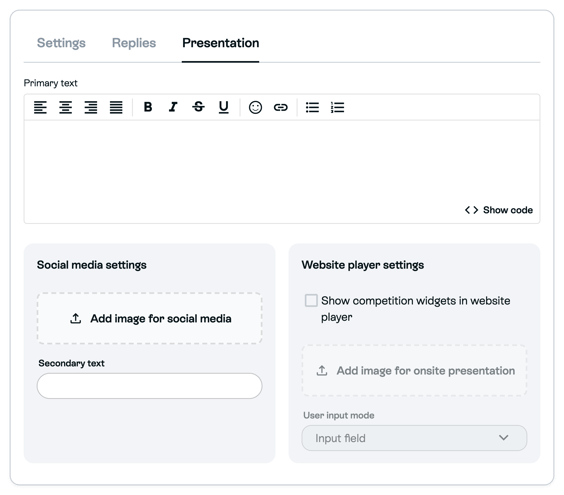
- For a Treasure hunt presentation, select the relevant treasure on the left before editing its content.
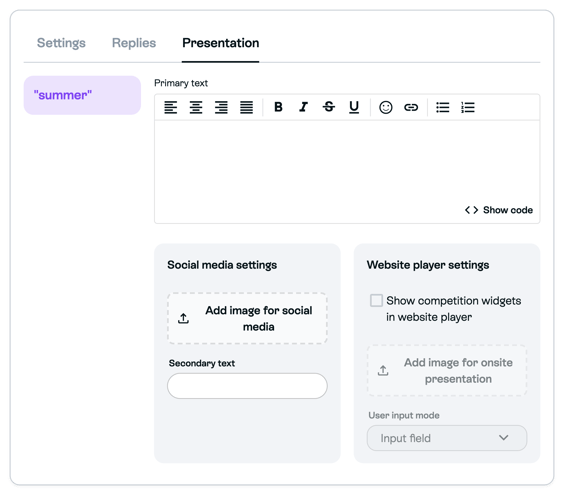
- Click Create to save the competition. Check that it appears in the campaign's Competitions area. Resolve any required-field error before continuing.
The Website player settings in the picture are a separate presentation area; the pictured disabled controls are not a claim about what is enabled on your Page. You do not need to configure a website player to use the live-show competition described here.
Run the competition during the show
- Open the campaign's Control Center

- In its competition panel, use Open when viewers can enter and Close when you want to stop accepting entries. You can also manage participation from the campaign's Competitions area.
- Show your prepared presentation when useful. Presentation visibility and whether participation is open are separate controls.
- For a raffle, quiz or treasure hunt, close participation before using Draw winners to select the configured winners. The raffle’s entry mode or the quiz’s first-correct rule determines selection; a poll has no draw.
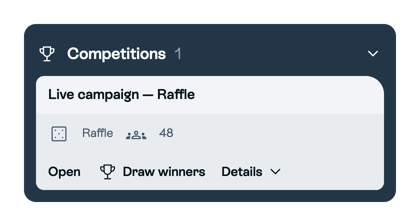
Check the selected winners, announce the result and follow the prize instructions you prepared. Drawing starts the configured winner-reply flow; Meta controls whether replies reach each recipient. Showing a winner’s name and delivering their private message are separate outcomes. A completed draw is not proof that a private message arrived.
Need help? Contact Sprii Support